
Custom Review and Decision Forms
On JAMS, you can customise the different pages that reviewers and the editorial board will fill out when working on a manuscript. For reviewers, you can customise the form they will fill out when reviewing a manuscript so you can gather custom information. For the academic editors, you can customise the form they will fill out when making a pre-check and an editorial decision.
This article details how to create custom components and what each customised form looks like in practice.
How to Create a Custom Form Component
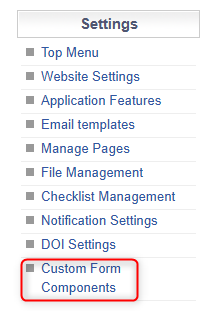
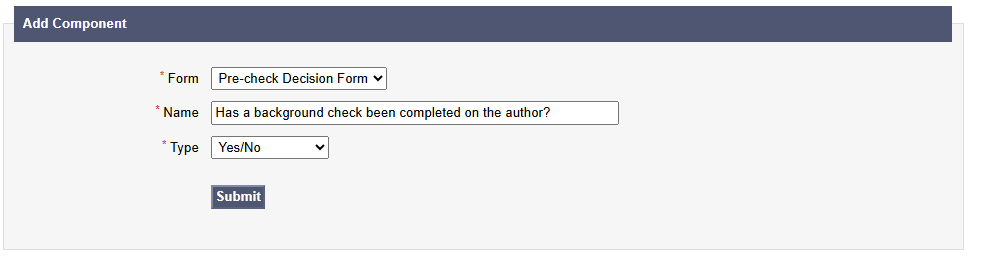
Locate ‘Custom Form Components’ at the bottom of the ‘Settings’ Menu.
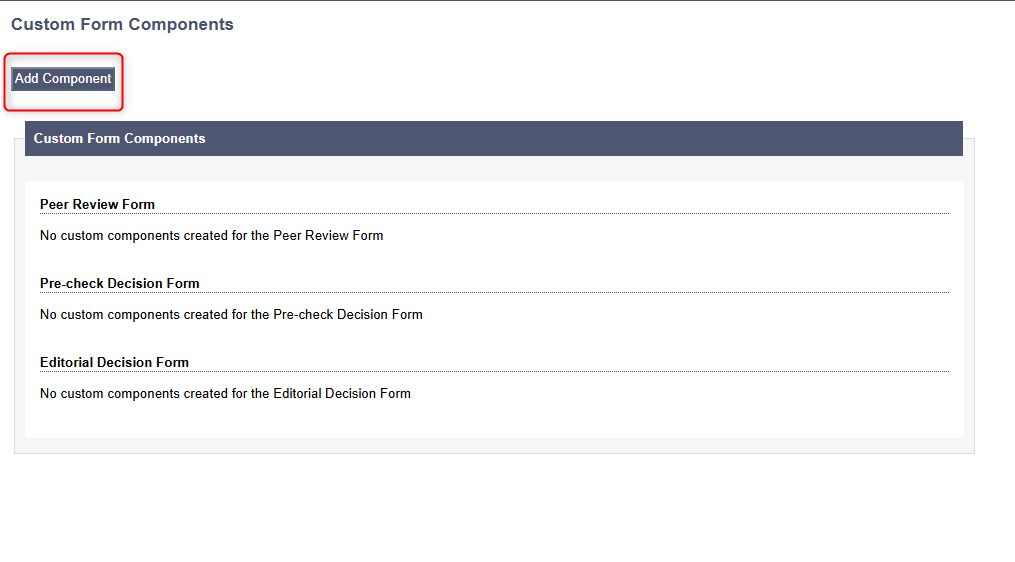
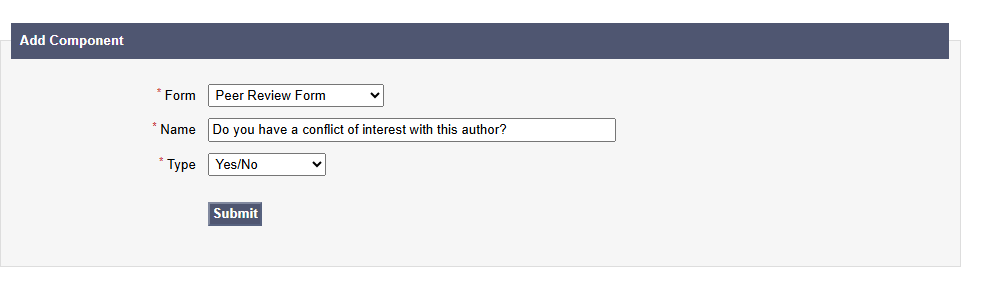
This is where you can see your custom form components and create new ones. To create a new one, click ‘Add Component’.
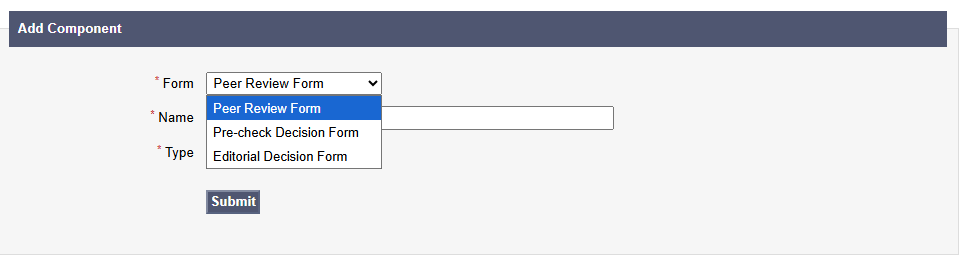
First, choose the form you would like to customise (read below for more details about what the different forms are)
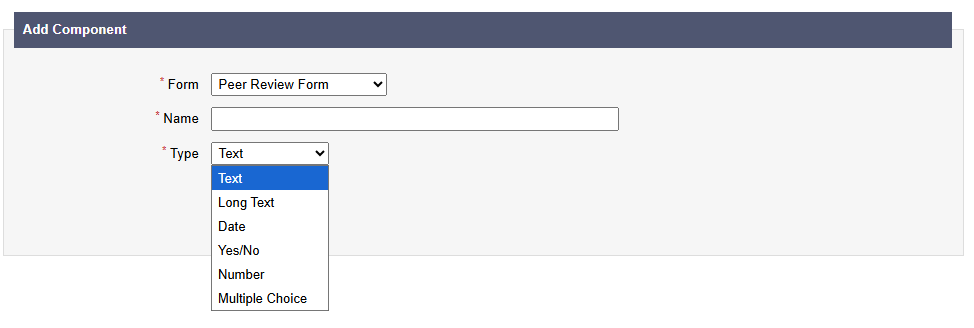
Write the text that will be displayed to the reader in ‘Name’. Then choose the type of form component you wish for the reader to fill out. For example, ‘Date’ will ask the reader to fill in a date and 'Long Test will give the reader a large text box to fill out.

Important: Once your forms are live and users are using them, you cannot delete a Custom Form Component.
However, you can edit the live component’s name to say something different or you can hide the component from user visibility.
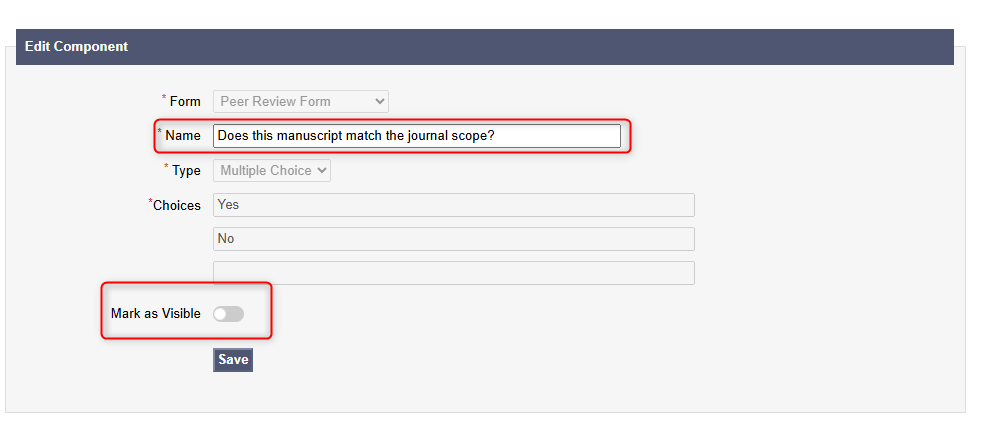
Where Custom Components will appear
1. Peer Review Form
When you select the Peer Review Form for your Custom Component, it will appear in a link accessed by all Peer Reviewers.
The reviewers will be emailed with a link to their own review form once they have agreed to peer review a manuscript.
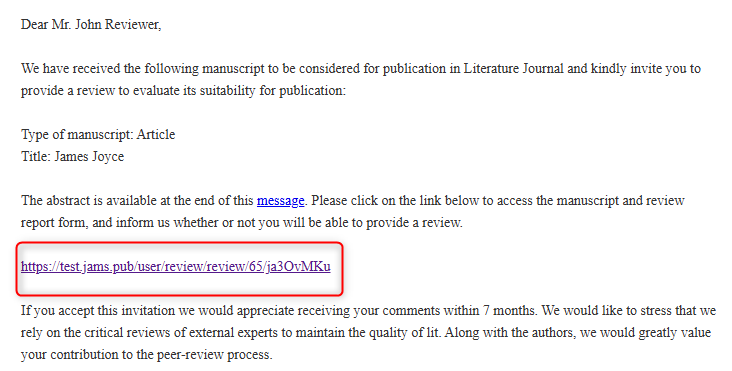
Example Email
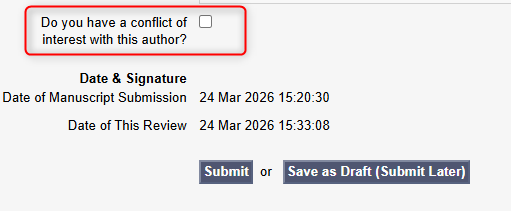
The review form looks like this and has default information and questions for the reviewer to fill out.
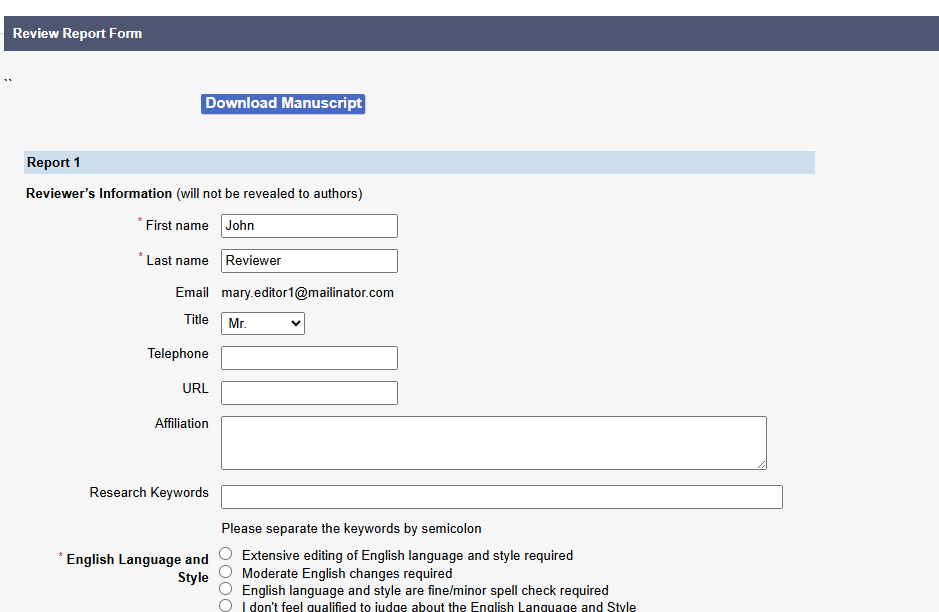
Your Custom Components will be visible at the end of the form before the reviewer submits.
For more information on the Peer Review process, see here.
2. Pre-check Decision Form
When you select the Pre-check Decision Form, the Custom Component will appear for Academic Editors when they are asked to Pre-check an article.

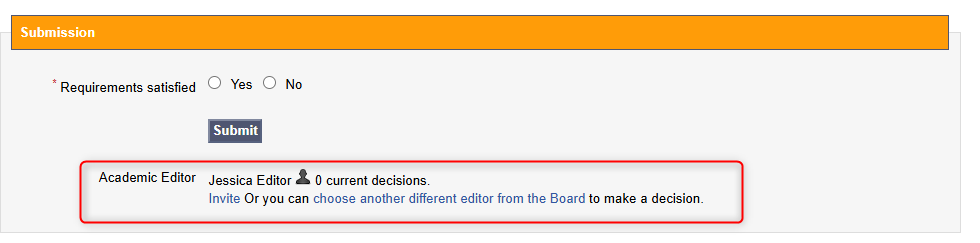
The Handling Editor will typically check whether Requirements are satisfied or not. They can then Invite an Academic Editor to also complete a Pre-check.
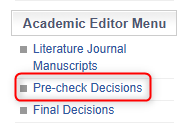
The Academic Editor can access these requests in their menu.
The form appears as default with the Custom Form Component at the end of the form.
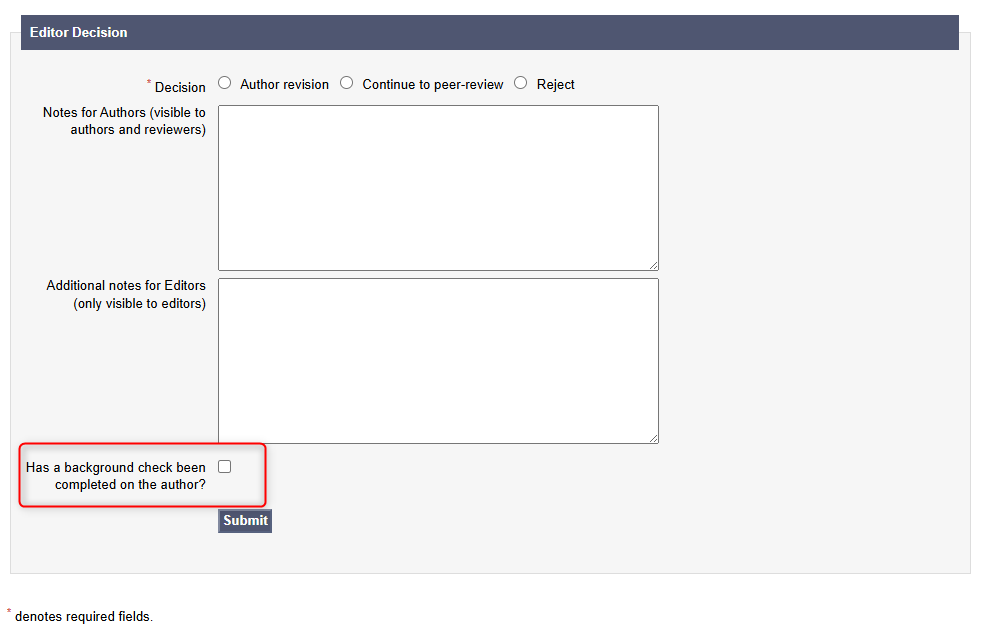
For more information on the Pre-check process, see here.
3. Editorial Decision Form
When you select the Editorial Decision Form, the Custom Component will appear when an Academic Editor is asked to make an editorial decision after Peer Review has been completed.
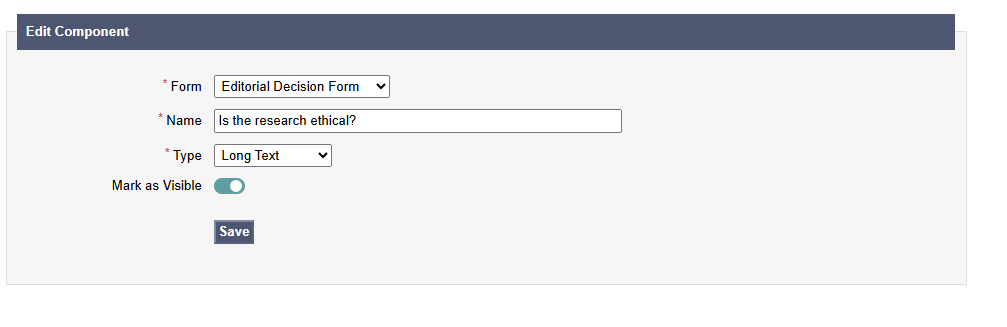
There is an option for Handling and Journal Editors to make Editorial Decisions which can be adjusted in Application Features. See here for more info.

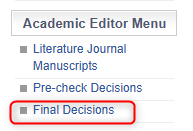
The Academic Editors can access these requests under ‘Final Decisions’ in their menu.
The form will appear asking them whether they think the manuscript should be accepted, rejected, revised, or looked at by more reviewers. Your Custom Form Component will appear at the bottom of the form.
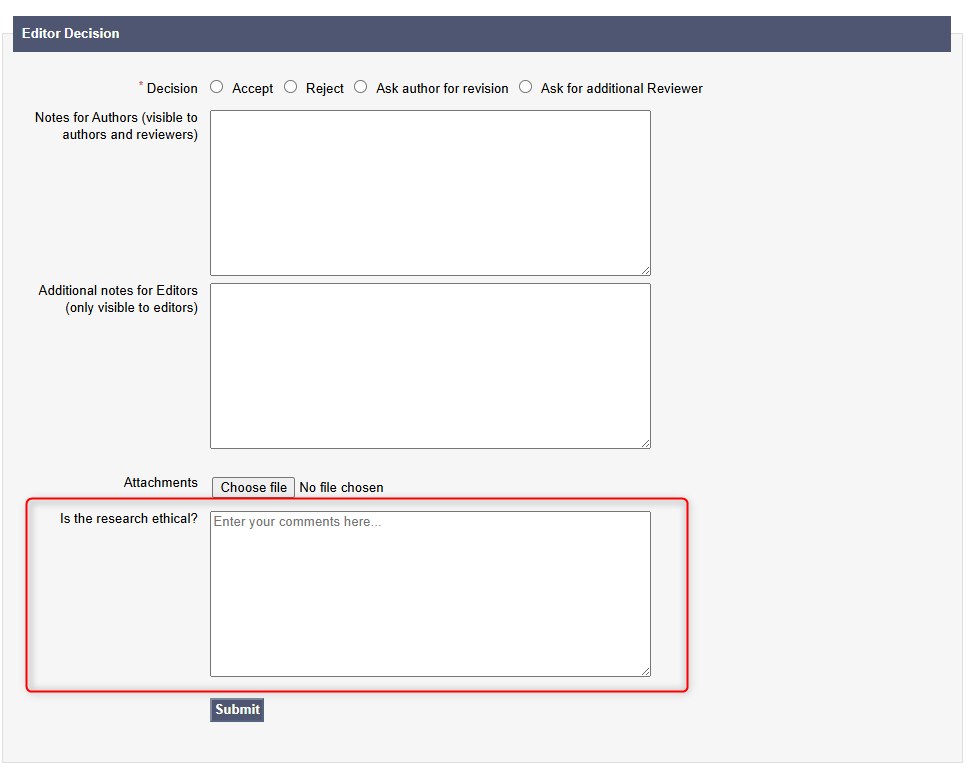
For more information about Editorial Decisions, see here.