
The Editorial Process
JOURNAL EDITOR HANDLING EDITOR
This article looks at the entire editorial process, including tasks of different Editors e.g. the Journal Editor or the Handling Editor.
Handling New Submissions
When a paper is submitted, it goes to the Journal Editor’s page and needs to be assigned to a Handling Editor. It will then be visible to both the Handling Editor and the Journal Editor in their personal ‘Journal Editor’ or ‘Handling Editor’ tab, where they can view all submissions. By clicking on the manuscript ID, the user will be taken to the manuscript page.
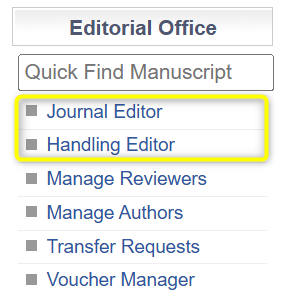
Editor Menus
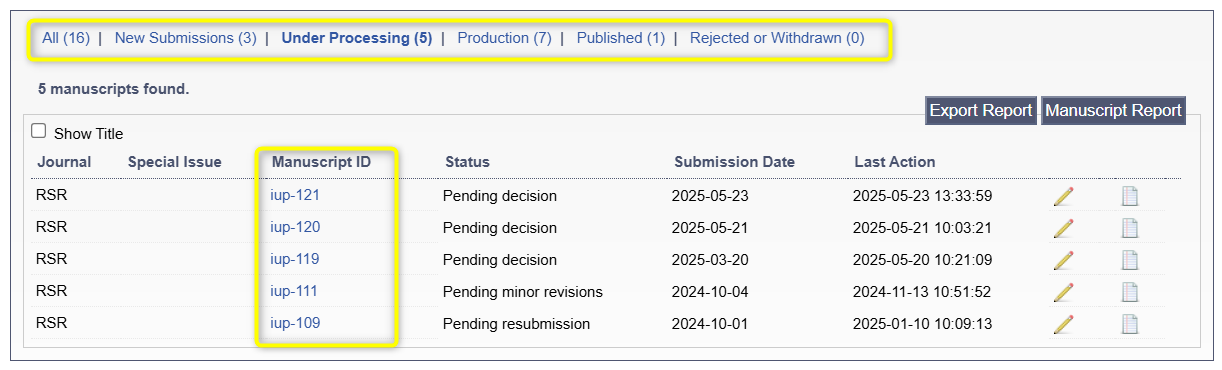
Handling Editor View
Assigning a Handling Editor
To change or assign the Handling Editor (only the Journal Editor or Publisher can do this), the editor’s name should to be added in the ‘Handling Editor’ column, or at the top of the manuscript page. The Journal Editor will be able to see how many manuscripts the Handling Editor is currently processing. Ensure that the Handling Editor has been confirmed as the article processing cannot be completed if there is no assigned editor.
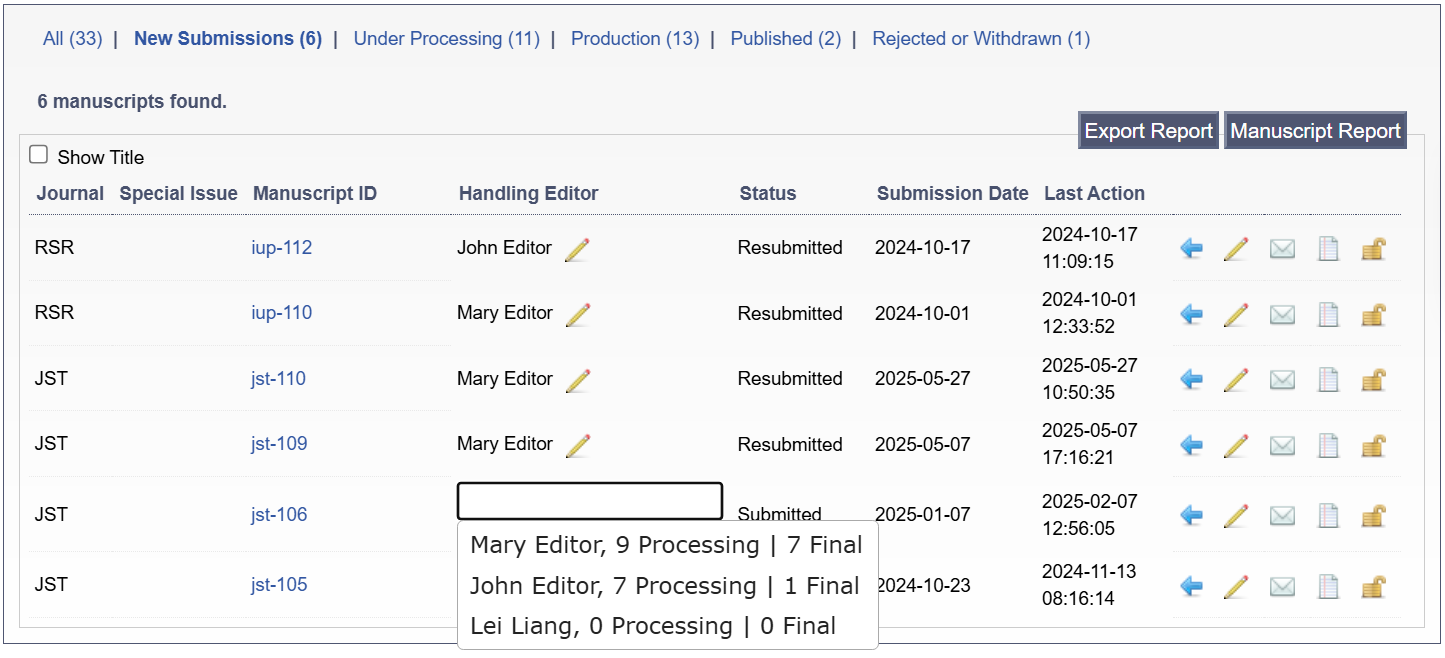
Assigning a Handling Editor through Journal Editor View

Assigning a Handling Editor on the Manuscript page

Note: The Journal Editor can also assign themselves as the Handling Editor to a manuscript if desired.
Precheck
The pre-screening stage usually consists of two main steps: a technical pre-check performed by the Handling Editor; and an editorial pre-check performed by an Academic Editor (optional). The journal should follow its own guidelines.
When the technical pre-check has been completed, the ‘Submission’ step needs to be closed by confirming that the requirements have been satisfied. An email will then be sent to the authors to confirm the receipt of the manuscript.
Sending the manuscript to the Academic Editor for a pre-check decision can also be done through this section and is optional.
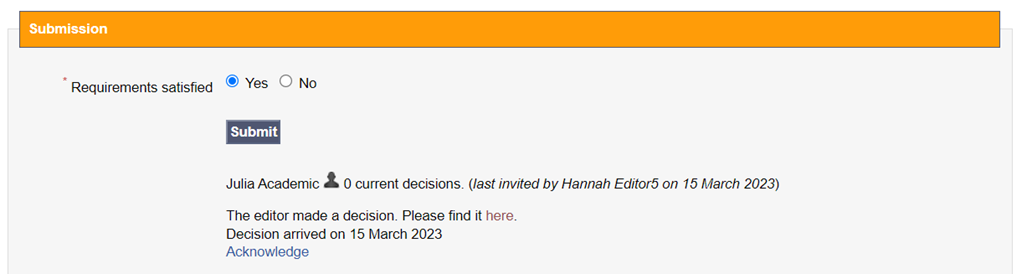
Peer Review
There are currently four ways to add and invite reviewers to papers that are under review on JAMS.
Reviewers can be manually added/created on the manuscript page.
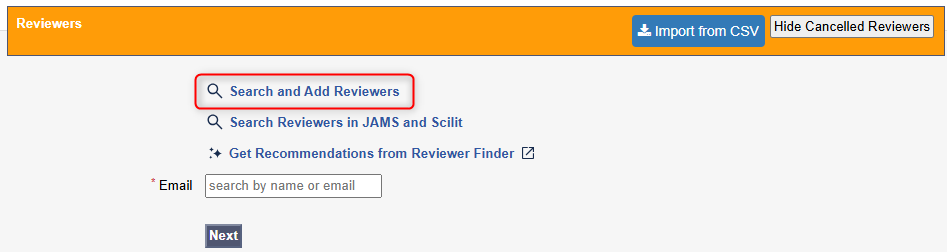
Review options found on the manuscript page

First row allows editors to search reviewers by the titles or keywords of their articles previously published via JAMS.
Second row browses reviewers through the keywords they have entered in the database.
Last row allows a reviewer search via their name or email address.
Visit our Reviewer Database article to find out how to add Reviewers to your journal’s database.
They can be searched via the Scilit search feature as well as being pulled out of the database.
Scilit is integrated into the JAMS platform to work in parallel with the journal’s own reviewer database. Put in a few keywords and the Scilit search engine will retrieve a list of potential reviewers, along with their contact details and titles of papers they have published.
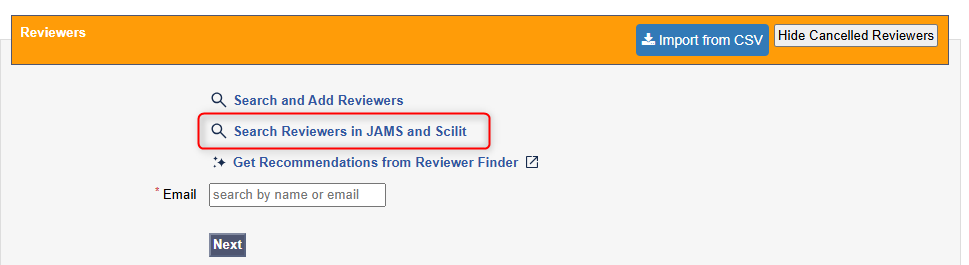
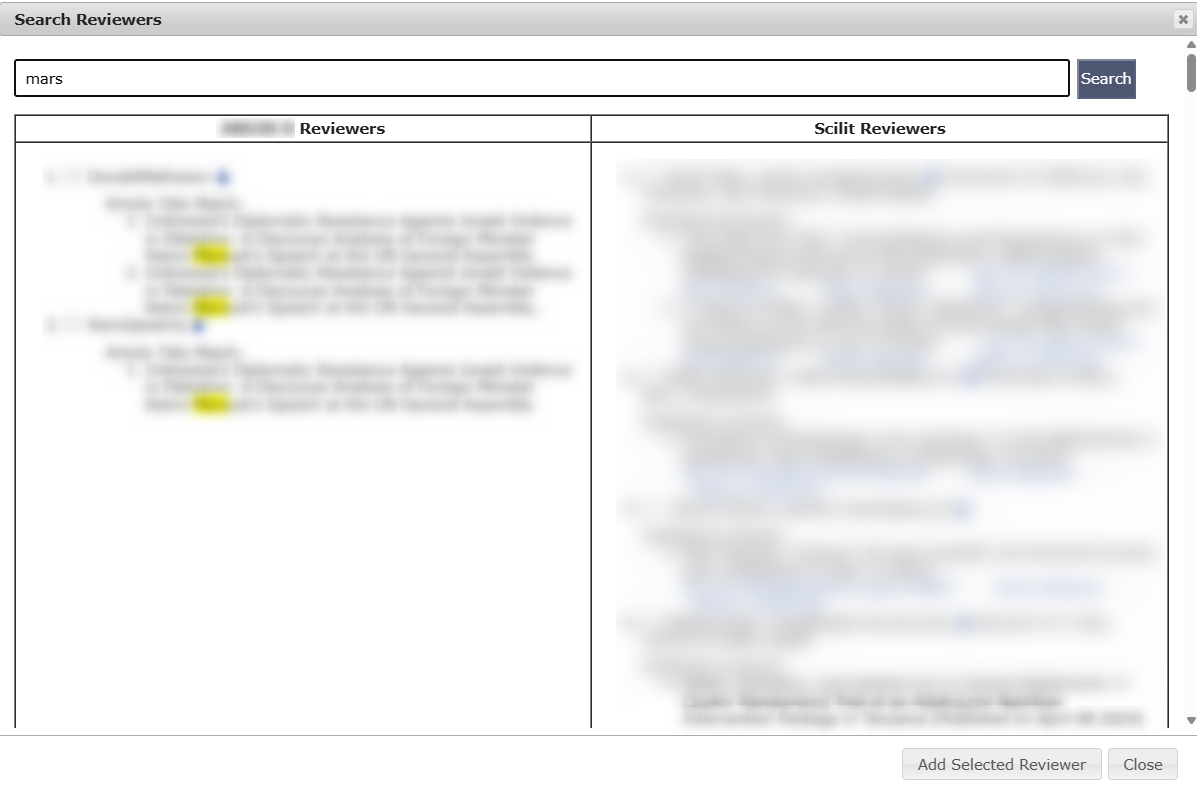
Results for keywords from the Reviewers on JAMS and Scilit
For users with access to Premium features, the AI-powered Reviewer Finder can be used.
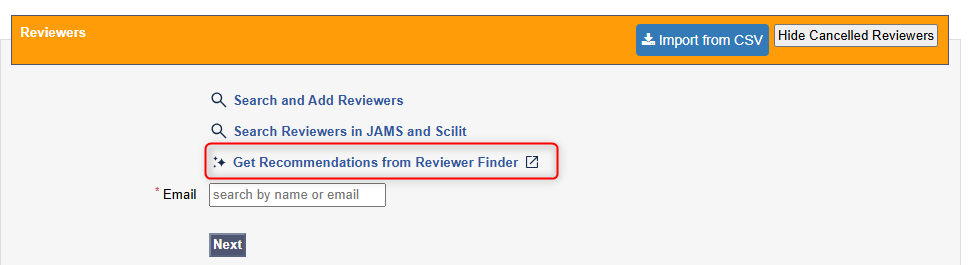
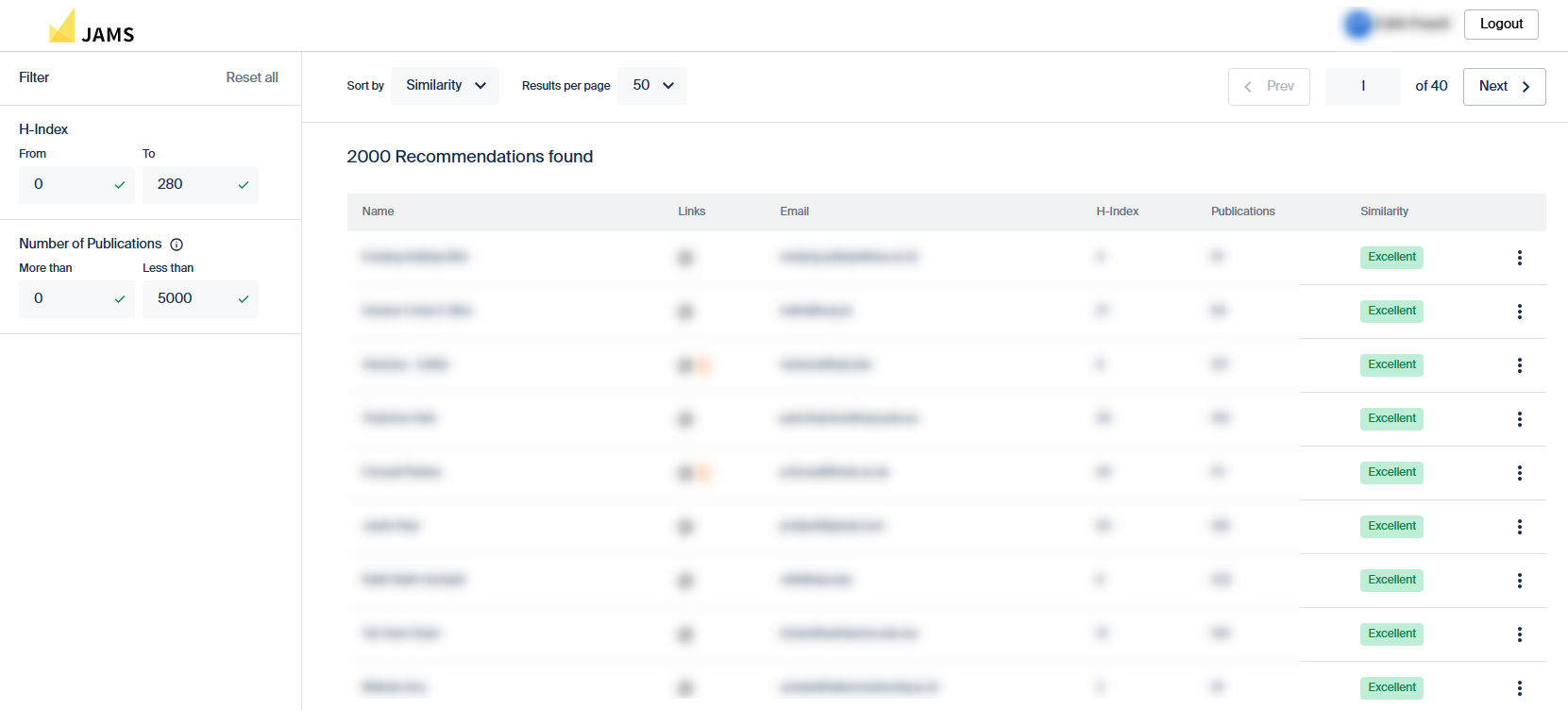
Reviewer Finder Page
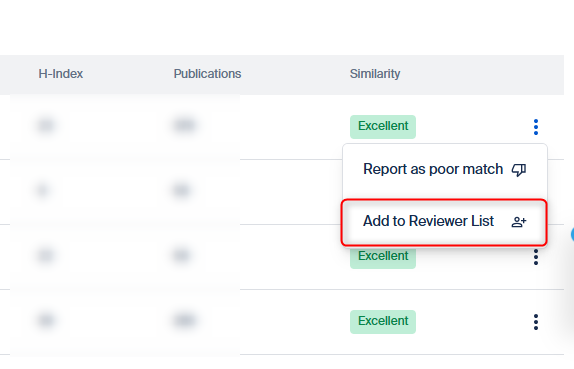
Add a reviewer to your reviewer list
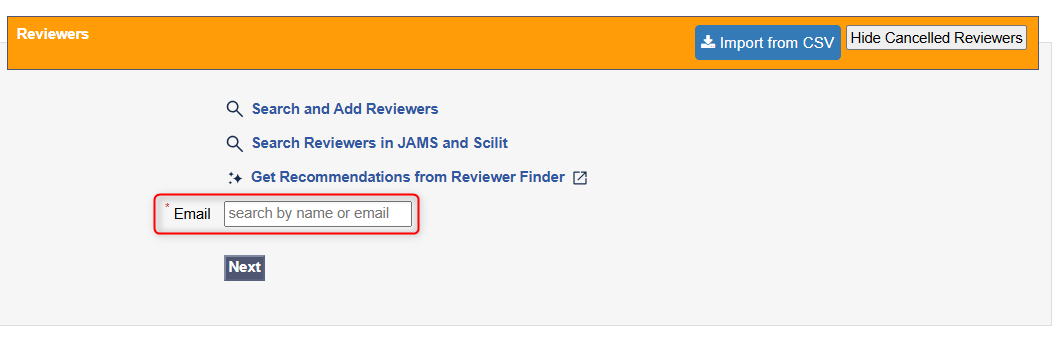
Reviewers can be searched for directly by name or email address here.
If the reviewer is already in your database, their details will be retrieved and displayed by JAMS. If not, the Editor will be prompted to add them.
After being added to the list of potential reviewers of the manuscript, each reviewer can be invited by clicking the Invite for Review option which will allow the editor to select and customize the email template before sending out an invitation. The green bolt icon allows a quick invite, which sends out a standard reviewer invitation in the background, without the ability to personalize the invitation email.
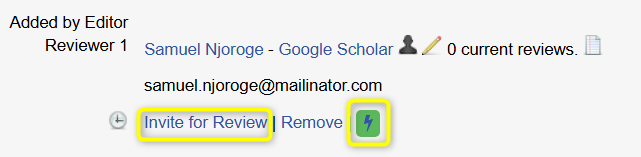
Inviting a reviewer
The editor will then have three options in the system for each invited reviewer. The first option is to cancel the invitation by selecting a template, and the other two options are reminders. Clicking Remind to Send Review allows the editor to customize the reminder email prior to sending it out, whereas the yellow icon sends a standard email reminder in the background.
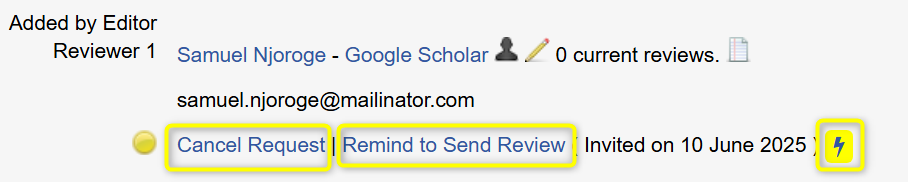
Reviewer Options
Once a reviewer accepts the invitation to review, the option to open the review report will be available to the Editor along to other ones to cancel or remind. In case reviewers decline the review invitation, their access to the manuscript page will be revoked and an email notification will be triggered to the handling editor.
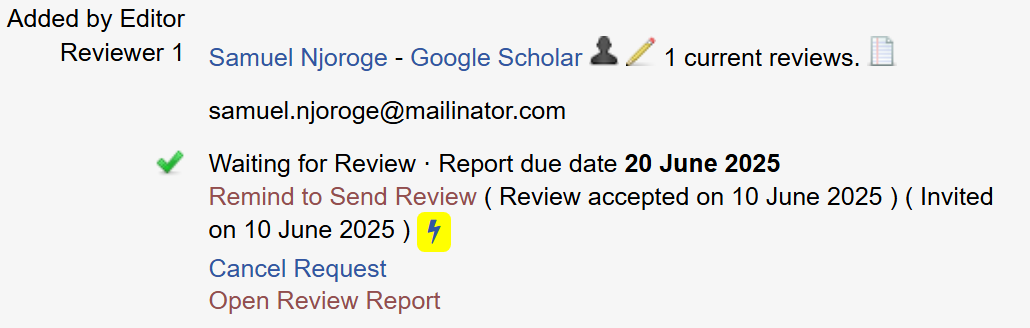
Reviewer Options upon Accepting to Review
When the peer review is closed in JAMS, the system cancels any pending invitations regardless of the status (invited, accepted or reminded) and notifies the invited reviewer. A different email template is used by JAMS depending on whether the reviewer accepted the review task (without submitting the review report) or not.
For more information on the Peer Review process, including how to adjust the minimum number of reviews for your journal, read here.
Assigning Academic Editors to Make Editorial Decisions
Once enough review reports have been collected, the Journal Editor or Handling Editor must close the peer-review stage by clicking Close Review and Proceed.
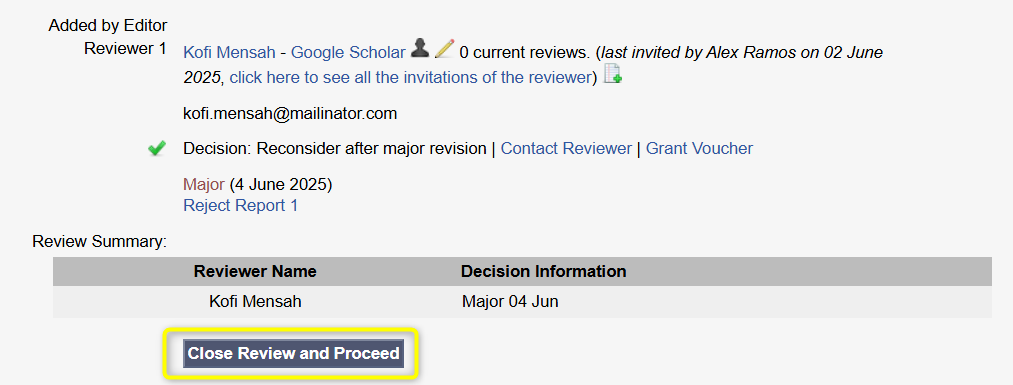
Note: this button only appears once the minimum number of review reports have been collected (usually one). You may now invite an Editorial Board member (Academic Editor) or choose another editor to make the decision.
If an application feature titled Parallel Author Revision and Editorial Decision has been enabled, two sections will appear on manuscript processing page - Authors Revision and Decision. In case the feature is disabled, only Decision section will be available. We suggest to configure this feature according to your editorial policies. If you require an academic editor to check the reviewer report before they are sent to the authors, you can leave this feature disabled, and the author revision section will only become available after the academic editor has made a decision to proceed to revision.
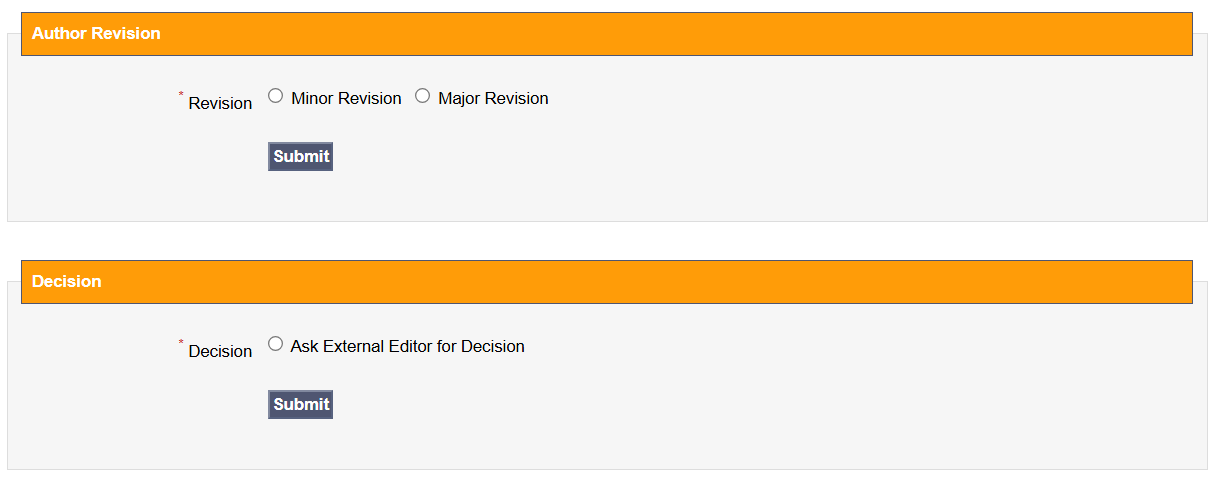
Sections After Closing the Peer Review
Note: Even if you have the Parallel Author Revision and Editorial Decision enabled, it is not mandatory to request an author revision to move onto the editorial decision. If the consensus is to move on without author revision for a manuscript, this feature can be ignored.
If the editor chooses to ask an academic editor for a decision, they will be able to send a decision email by clicking Invite or first Choose Different Editor From Board and then proceed to sending out a decision request. For more information about adding Academic Editors, read here.

The Academic Editor invited to make the decision on a manuscript will receive a notification by email.
By following the link in the email, the Academic Editor can view the review reports and make a decision on the manuscript. They can also download the latest version of the paper as well as see basic article details, such as the title, abstract and authors.
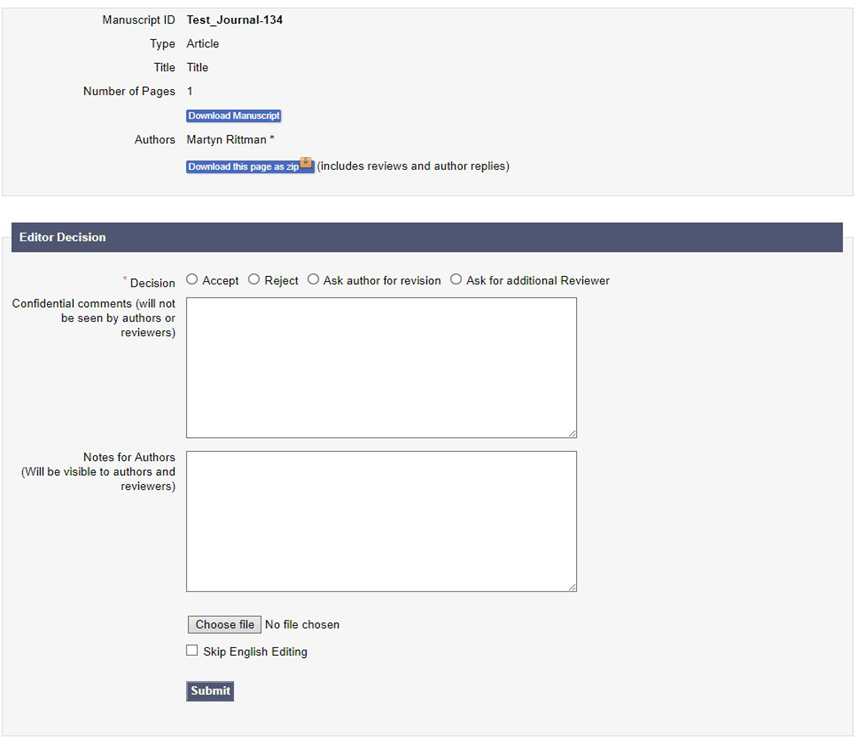
Academic Editor decision form
The AE will see a preview of the decision and a ‘Submit’ button. Clicking this button will send the decision to the authors via email. Note that you can customize the email before sending it.
Revisions
If an editor chooses to send the paper for author revision, one of the revision options should be selected. By clicking Submit, the editor can send an email to the authors advising them that a revision is needed. The email contains a link which takes authors to a page including reviewer comments and options for resubmitting their paper.
Note: Upload options will only appear once all reviewer comments have been replied to.
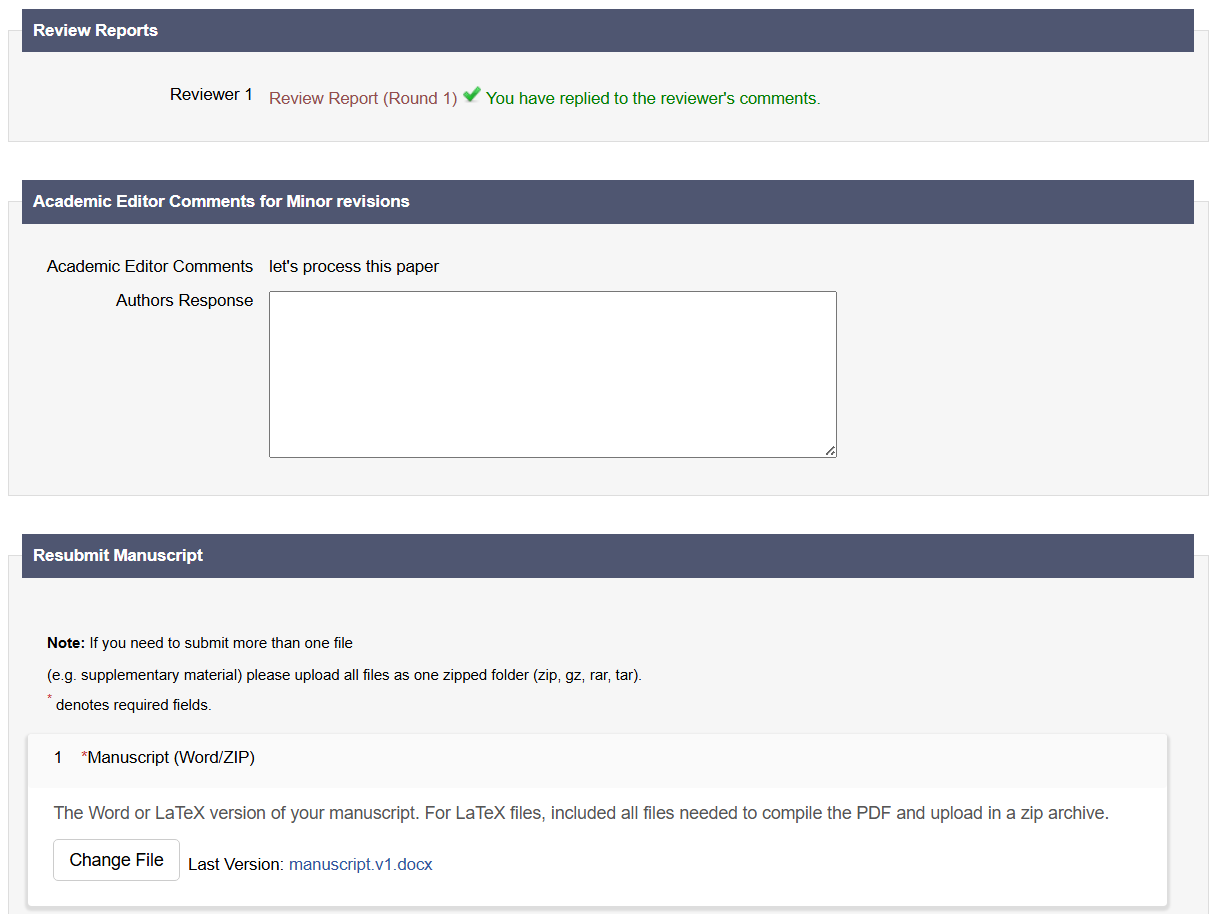
Author's View