
Reviewer Database
On JAMS, you are able to upload your own reviewer database, and by doing so you can search and use them for your manuscripts directly in JAMS.
How to Add Reviewers to your Database
The reviewer database can be accessed via the Manage Reviewers option in the main menu.


In this screen, you can add a single reviewer by choosing the + Add New option and populating mandatory data fields shown below.

To add several reviewers at once, you can import them from a .csv file. The steps are below.
How to Import Reviewers from a CSV File
- Download the template. On the Manage Reviewers page, click 'Import CSV'. Then, on the Import Reviewer page, click the 'File format.' link to download the template.

- Add one reviewer per row. Keep the header row and all 12 columns exactly as they are in the template, and start your reviewers on the second row. Use the guidelines below to fill in each column.
- Save the file as a .csv. If you are using Excel, choose 'CSV UTF-8 (Comma delimited)' so that names with accents, such as Béjaoui or Gruszczyński, are kept. The file must be smaller than 20 MB.
- Upload the file. Back on the Import Reviewer page, click 'Choose File', select your file, and click 'Submit'.
- Check the results. When the upload finishes, JAMS shows how many reviewers were Imported, Duplicated, or had an Error, with a message for each row that was skipped.
Once the import is complete, your reviewers will be visible on the Manage Reviewers page.

Important: Do not delete, add or reorder columns, and do not remove the header row. JAMS always skips the first row, and if any row does not have exactly 12 columns, the whole file is rejected with the message "CSV data is invalid." and no reviewers are imported.
Filling in the Template
| Column | What to enter |
|---|---|
| Firstname | The reviewer's first name only. Do not include a title such as "Dr" here. |
| Lastname* | Required. The reviewer's surname. |
| Email* | Required. One valid email address. |
| Affiliation | The reviewer's institution. |
| Keywords | The reviewer's research areas, separated by semicolons, e.g. corporate finance; auditing; ESG . Keywords make reviewers easier to find when you search the database. |
| Telephone | Optional. |
| Title | e.g. Dr., Prof., Mr., Ms. If you leave this blank, JAMS uses "Dr.". |
| Url | Optional. A link to the reviewer's profile page. |
| Country | The country's full English name. If JAMS does not recognise the name, the country is left blank. |
| H-index | Optional. A number. |
| H-index URL | Optional. A link to the source of the H-index, such as a Google Scholar or Scopus profile. |
| Journal | Leave blank, unless you use a Journal-specific Reviewer Database (see below). |
Columns you are not using can be left empty, but they must still be there.
💡 Top Tip: Before you import, check your list for the same person appearing twice with different email addresses. JAMS treats each email address as a separate reviewer, so they would be added twice.
Journal-specific Reviewer Databases
If the 'Journal-specific reviewer database' option is turned on in Application Features, you must fill in the Journal column on every row. Enter the journal's Journal Short Name exactly as it appears in the Journals menu.
Important: If the Journal column is blank or does not match a Journal Short Name, the reviewer is still imported, but it is not linked to any journal. It will not appear on the Manage Reviewers page or in reviewer searches on manuscripts. If this happens, contact the JAMS support team before importing the file again, as a second import will be skipped as Duplicated.
For more on this option, see Journal-specific Reviewer Database.
How to assign reviewers to a manuscript
There are currently four ways to add and invite reviewers to papers that are under review on JAMS.
- Reviewers can be manually added/created on the manuscript page.
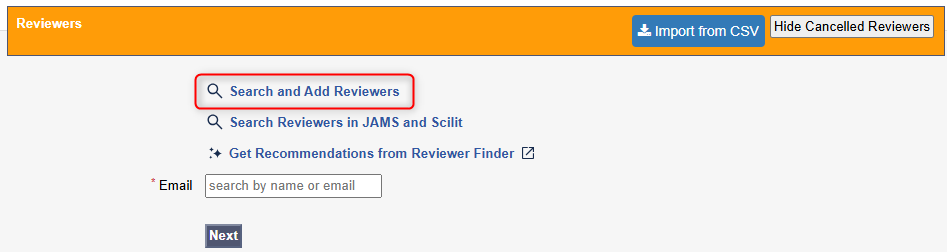

- They can be searched via the Scilit search feature as well as being pulled out of the database.


- For users with access to Premium features, the AI-powered Reviewer Finder can be used. For more information on using the Reviewer Finder, read here.

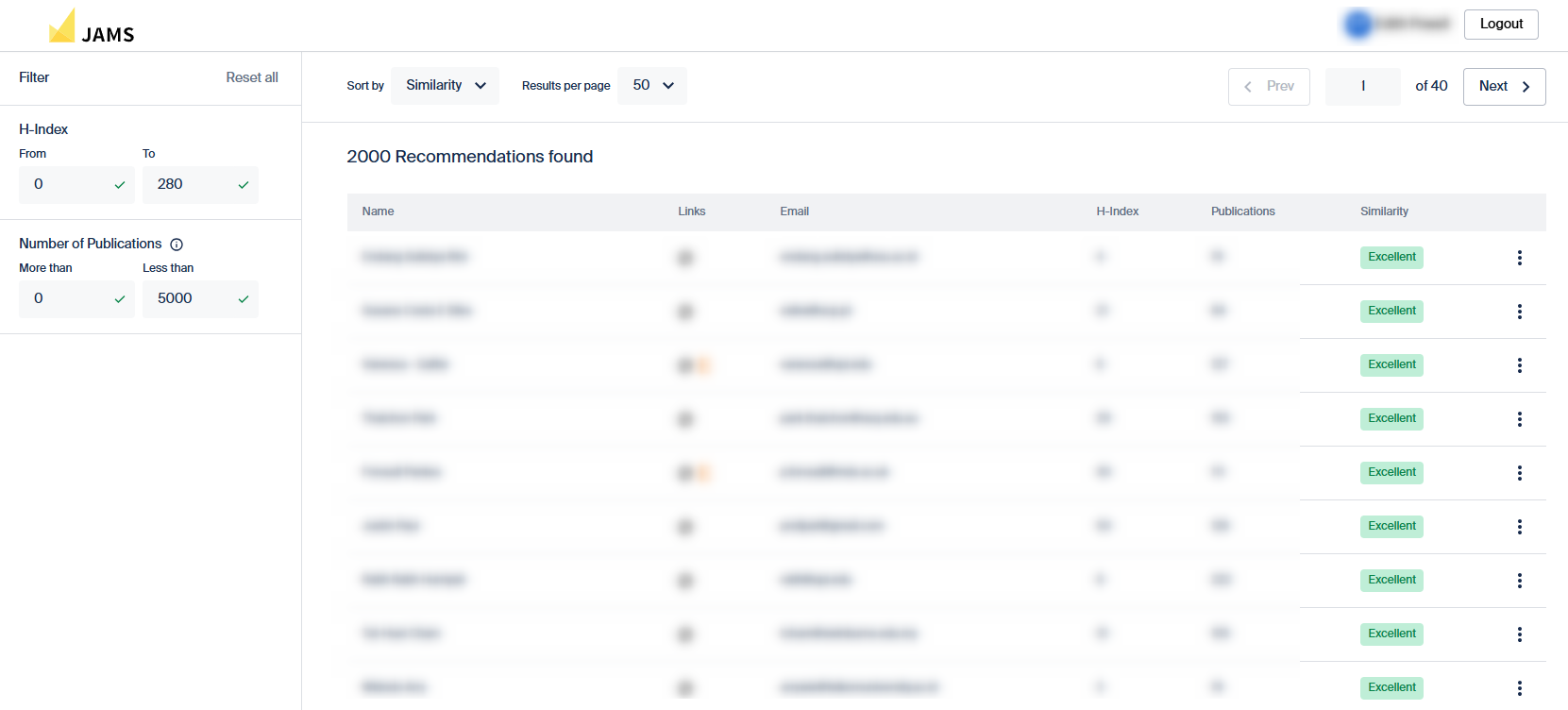
- Reviewers can be searched for directly by name or email address here.

How to adjust number of Reviewers per manuscript
Locate the Journals menu option in the Super User side column.

Find the journal you want to adjust the peer review quantity for and click the pencil ‘edit’ icon.

Scroll down to the Peer Review section of the Journal Settings and set a Minimum Reviewer Number and Default Reviewer Number to fit the needs of your Journal.

For more information about how the Peer Review process fits into the Editorial process as a whole, see our article here.