
4 Starting Steps to Success!
When starting your JAMS journey, there a few steps to follow to get set up.
These are the four things we recommend to new customers to get set up on JAMS and begin your publishing journey!
Step 1:💻Check Your Website Settings
Whether the JAMS team have filled in your website settings for you or not, it is important that you check all the fields are filled in correctly.
After logging in, scroll down and locate 'Website Settings' in the left-hand menu column.
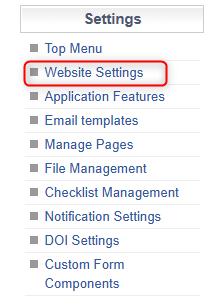
Check that all the mandatory information is filled in correctly. For more information about the email mailboxes at the bottom of the page, see the Email Mailboxes for Background Notifications page.


When you are happy that all the Website Settings are correct, click ‘Submit’ at the bottom of the page.
Step 2:📑Create Your Journal!
It's important to get your journal settings onto the system early. This lets you start customising your JAMS experience.
To do this, locate 'Journals' under the Super User column. Then, click ‘Add New Journal’.


Then, fill in the mandatory information.
📝Note: If you are hosting your journal online, you must have an Electronic ISSN by the time you begin publishing. If you are in the process of getting one, you can fill in this field with filler information temporarily.
⚠️Important: You will need to tick the ‘Visible to Authors’ box to see all the available features! Don't worry though, there are currently no authors on your JAMS site.
When you’re ready, click Submit at the bottom of the page.

Step 3:📨Invite Editors/Employees
The next step is to invite other users to JAMS. At the moment, you can do this by clicking 'Logout' at the top right of the page.

This will take you to your login landing page like the example below. Locate the URL at the top of the page and copy it (Ctrl + C). Then, send it to your editorial team/employees .
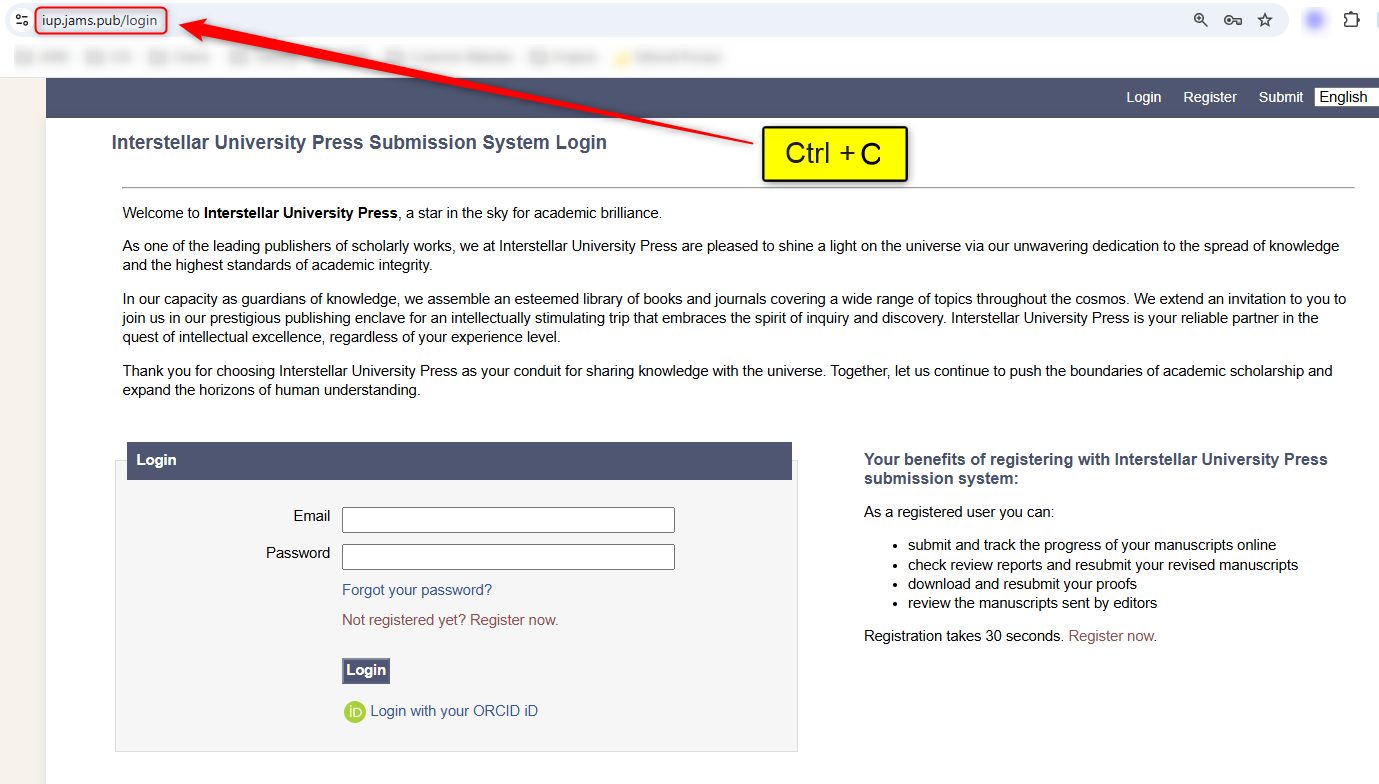
Your team must then register a new account on your JAMS site. They can register by clicking either of the buttons below and filling out their email address and creating a password. They will then need to verify their email address.

ℹ️ Top Tip: Ask your editors to notify you when they have registered. This means you can complete step 3 as soon as possible. Please note that JAMS plans on implementing a feature in the future that will fully integrate the invitation process.
Step 4:⚙️Adjust Editor Permissions and Roles
Once your editorial team have registered, they need to be granted editorial permissions on JAMS. All users that sign up are automatically given an author account. As a Super User, you can change this so your editors have access to editorial controls.
Firstly, you need to locate the Users menu option under the Super User section.
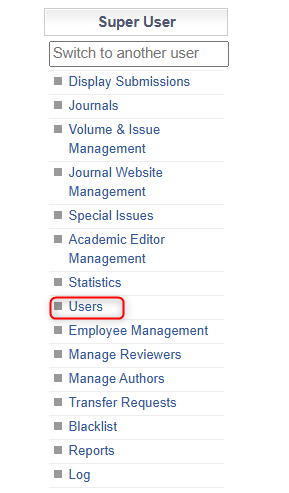
In the User Management menu, you should flag a registered user as a member of the editorial office. By clicking the ❌icon next to their name, the icon will be changed to a green checkmark (✅) and the user will be marked as an editor. Regarding authors and reviewers, this option should remain negative (❌icon). This view also allows a Superuser to see whether there are unverified user accounts and override the need for email verification if this is required.

Next, locate the Employee Management section under the Super User menu
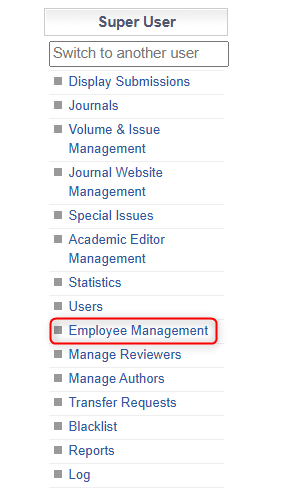
The Employee Management screen displays a view of all registered users who are marked as editors, with the ability to view and update their roles.
The 'Edit Roles' option allows the assignment of roles such as Handling Editor, Journal Editor, and Publisher. See the Editorial Team: User Roles page for in-depth information about the different roles.
The 'Edit Journal Editor', 'Edit Handling Editor', and 'Edit Publisher' options let you select the journal(s) for which the role will be applied.
