
Rejecting or Withdrawing a Manuscript
There are multiple stages when the editorial office can decide to reject or withdraw a manuscript. This article explains how to go through this process at each of these stages.
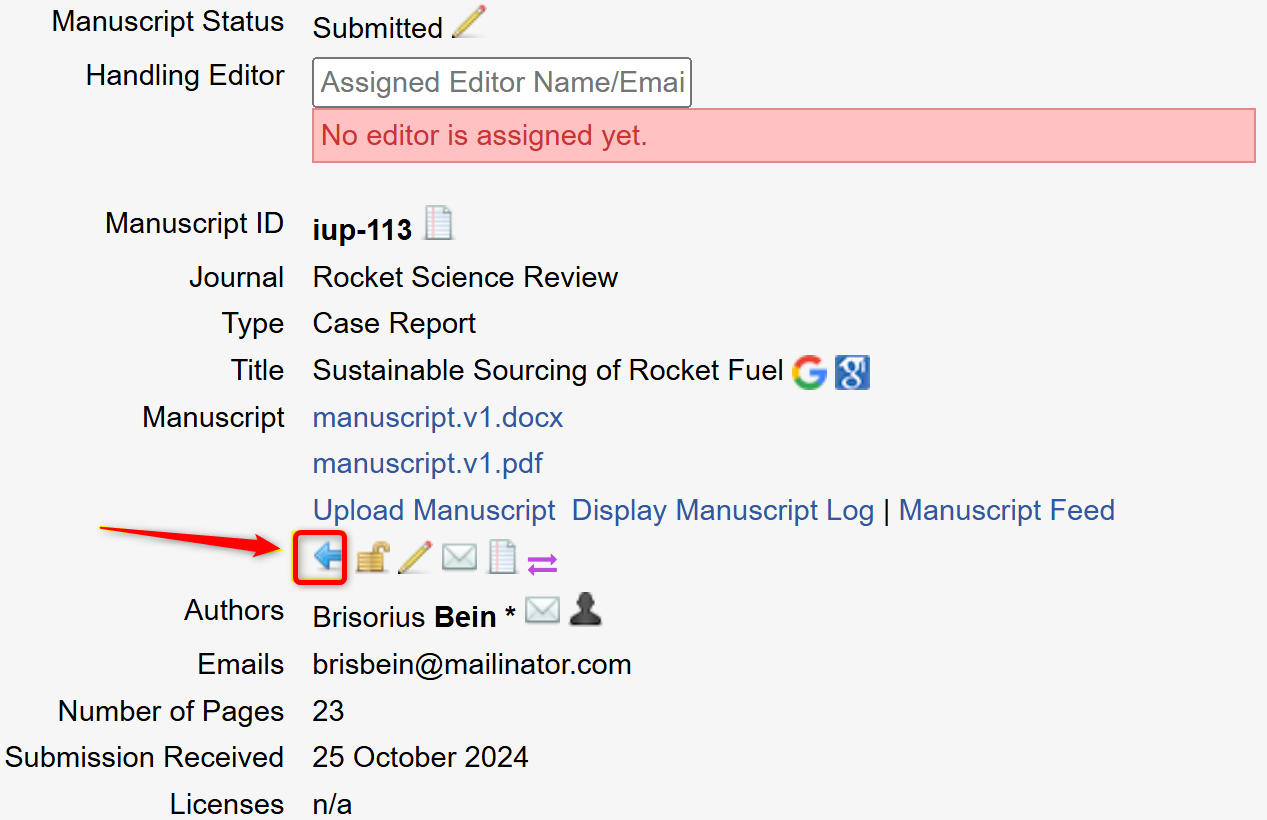
The article can be directly rejected or withdrawn from the moment it has been submitted. Before a Handling Editor is assigned, only Journal Editors and Publishers have access to the Reject Paper option (blue arrow icon) which can be found on the main manuscript page.
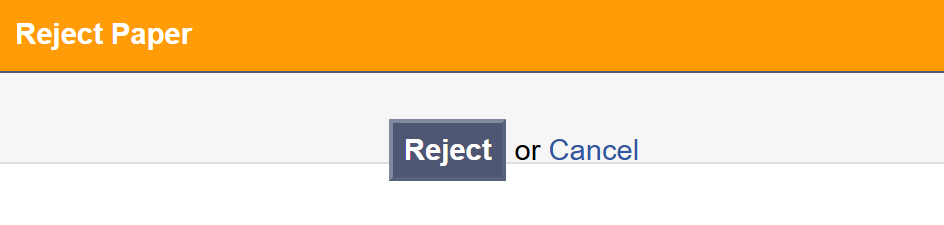
Upon clicking the Reject Paper icon, a message will show asking the user whether they wish to proceed and Reject the paper or cancel.
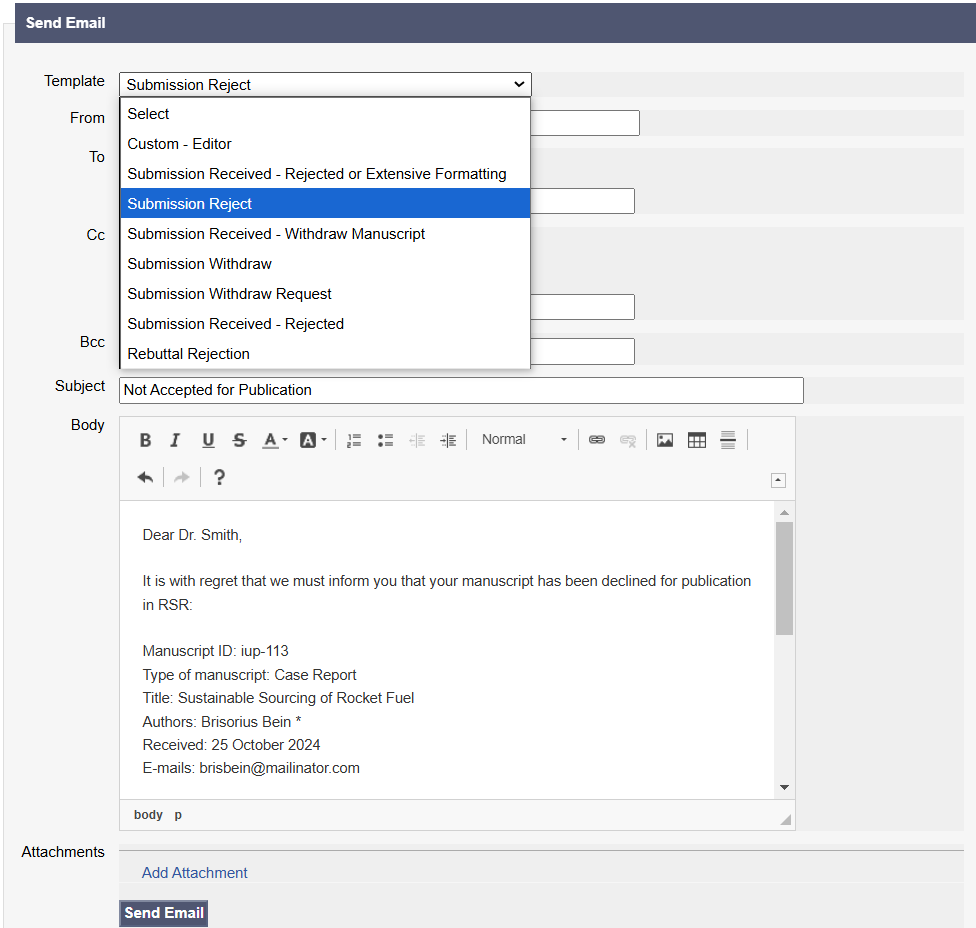
If the user proceeds to reject the paper, they will be able to choose one of the built-in templates and send them out to the authors. Once this email notification is sent out, the manuscript status will be automatically changed to rejected/withdrawn respectively.
Another way of rejecting a manuscript is upon receiving a Reject decision from the Academic Editor. In this case, Handling Editors are able to reject a paper.
Once the Academic Editor has provided their decision, it can be found by clicking the hyperlinked here text on the manuscript page.
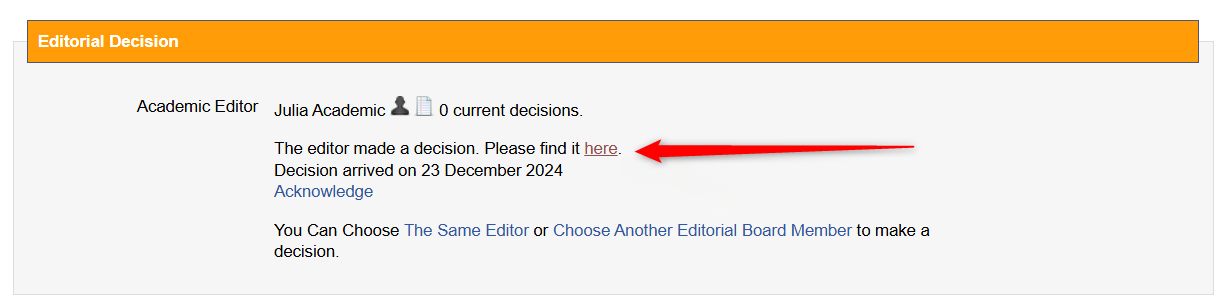
A new page will open up showing the Editor’s decision and prompting the Handling Editor to confirm it by selecting and submitting the decision.
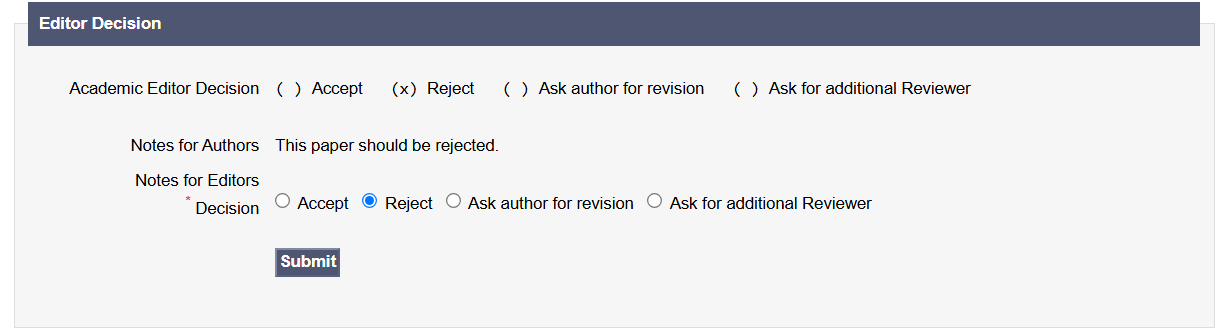
Upon confirming the Reject decision, a new page will load up prompting the Handling Editor to send out rejection emails to authors.
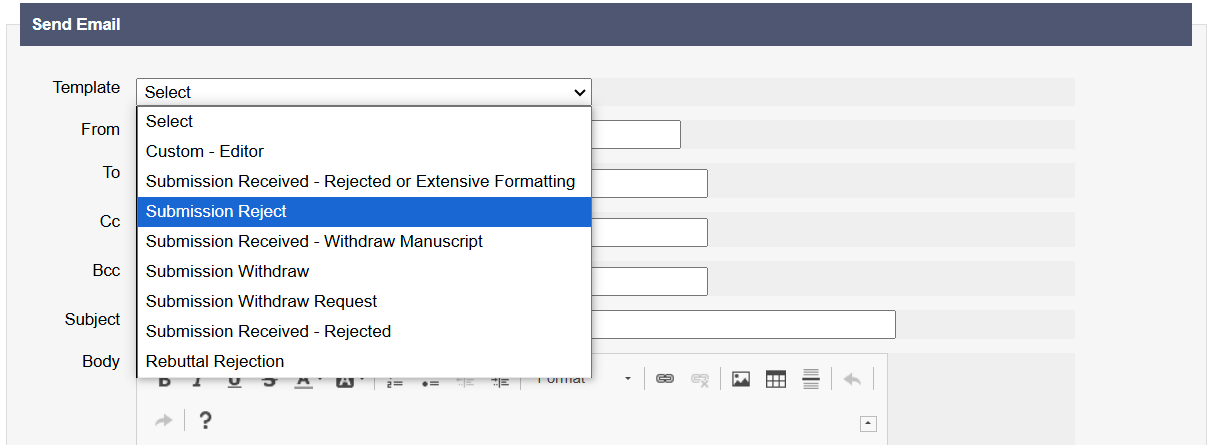
Once this email notification is sent out, the manuscript status will be automatically changed to rejected.