
Email Templates Management
JAMS makes it easy to manage communications across authors, peer reviewers and editors all on the JAMS application. Adding and customising email templates means many procedures can be tailored with pre-written responses. For example, when letting an author know that their manuscript has been accepted for publication, the editor has access to a pre-written email and has the option to customise it before sending. You can also create custom email situations in which to add a pre-written email.
Steps for setting and editing email templates are as follows:
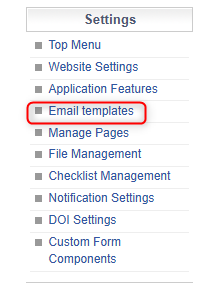
- Navigate to Email Templates from the Settings Menu in JAMS.
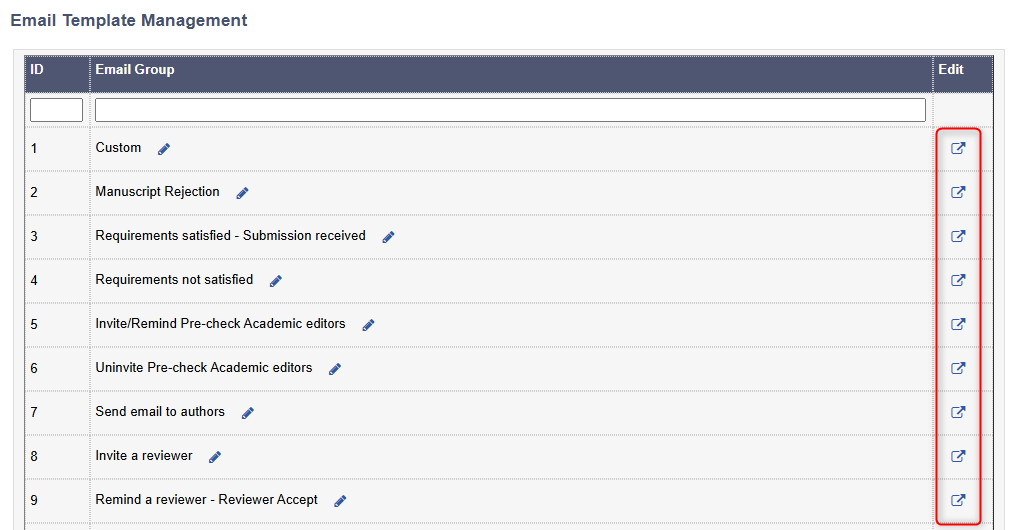
- Select the email situation that you would like to edit by following the icon on the right.
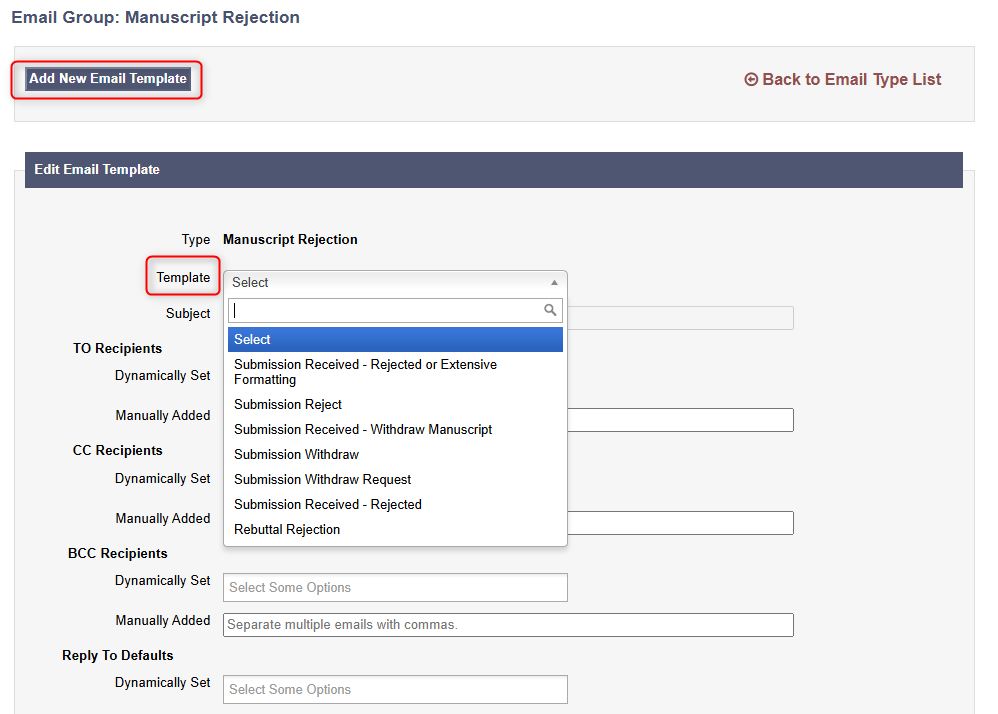
- Upon selecting the template, users can choose whether they wish to add a new template or edit one of the available templates from the drop down menu.
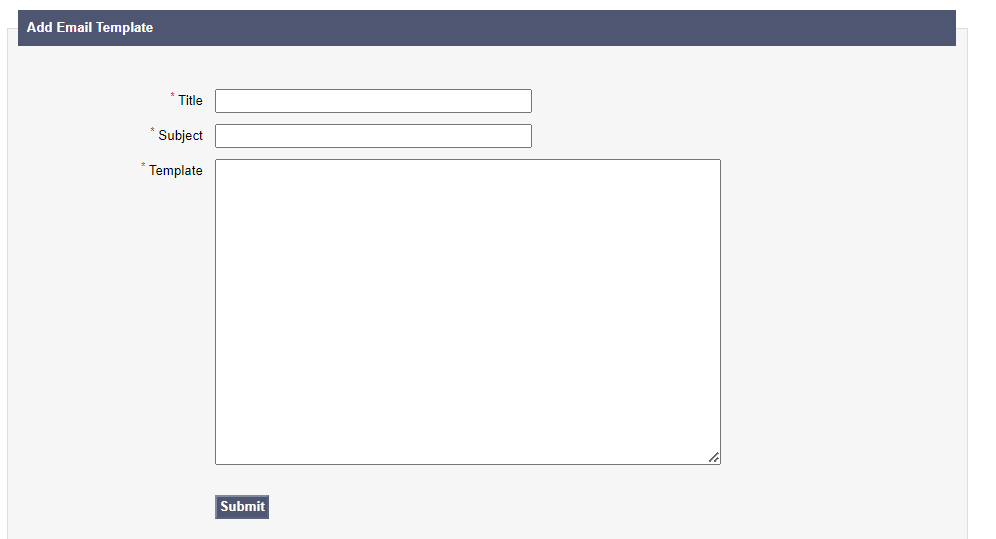
- Upon selecting the Add New Template option, a page will show where you will be able to add the Title, Subject and create your template text.
- If you’d like to change an already existing template, you can select it via the drop down menu. Once the template is shown, changes can be made by directly typing into the Body field to update the text content.
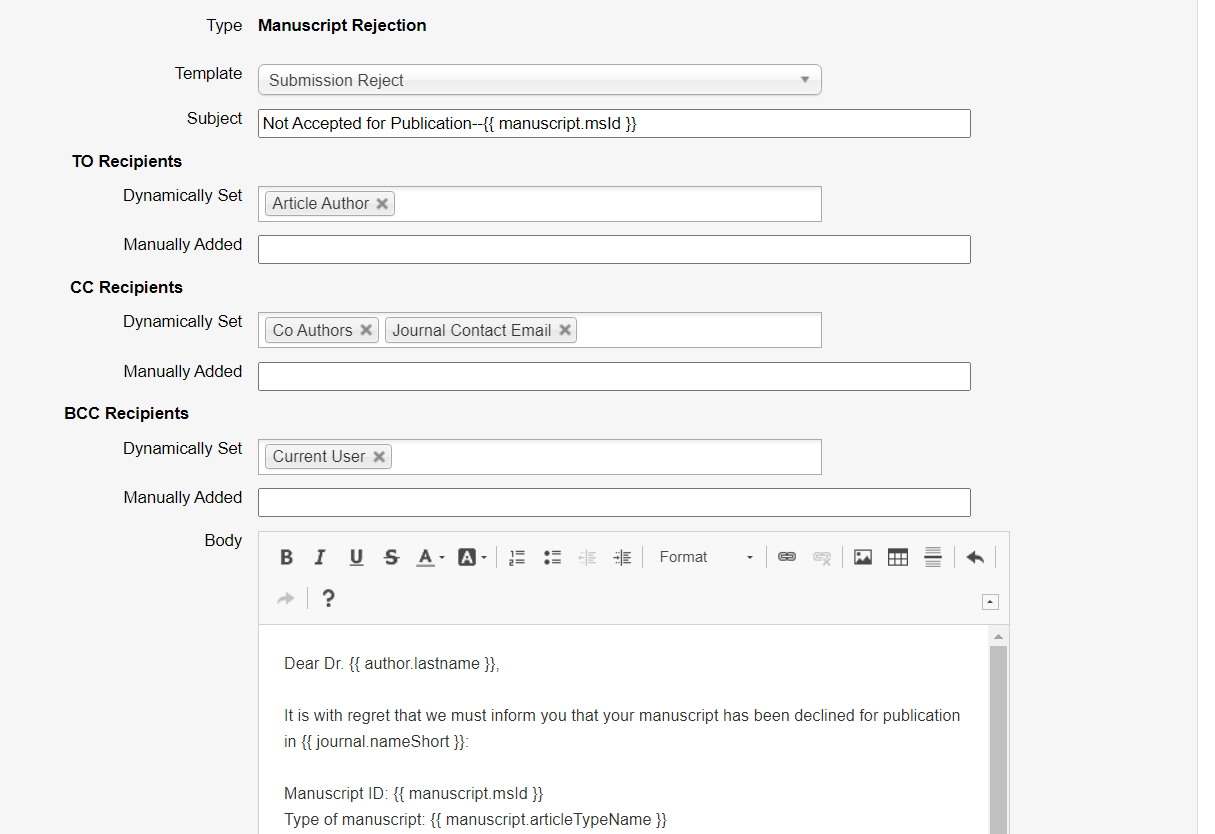
- You can also input variables which can retrieve information from the system dynamically (e.g. the author’s name, or the manuscript title).
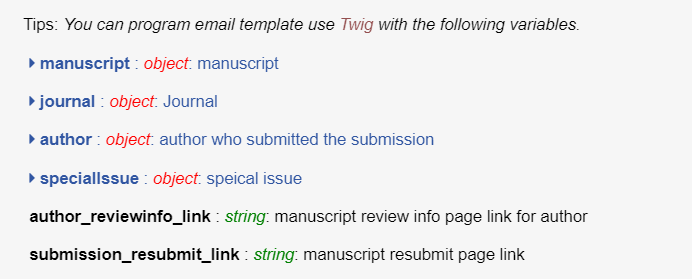
- Upon revising the template, you can save changes by clicking the Update template option. You can also delete it completely by choosing one of the shown options below the email.
