
Inviting a Reviewer
This article explains how to invite reviewers to a manuscript that is under peer review, and how to keep track of who has accepted.
Reviewers are invited by the Handling Editor (the editor processing the manuscript) from the manuscript page.
To start, open the manuscript you want to send for review by clicking on its Manuscript ID.
Important: A Handling Editor must be assigned and the manuscript have have passed its pre-check before you can invite reviewers. If you cannot yet reach the review options, see the The Editorial Process page for the earlier steps.
On the manuscript page, scroll down to the 'Peer Review' section. This is where you add, invite and manage reviewers for the manuscript.
Adding a Reviewer
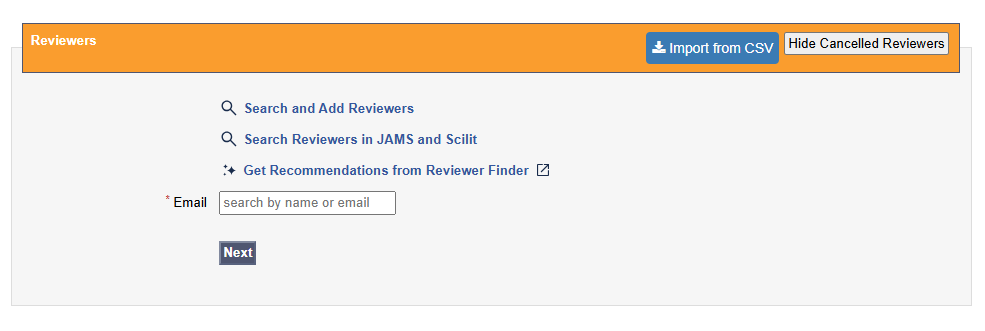
There are four ways to add a reviewer to a manuscript. You can create one manually, or use one of the three search rows to find an existing reviewer.
- Add or create a reviewer manually on the manuscript page.
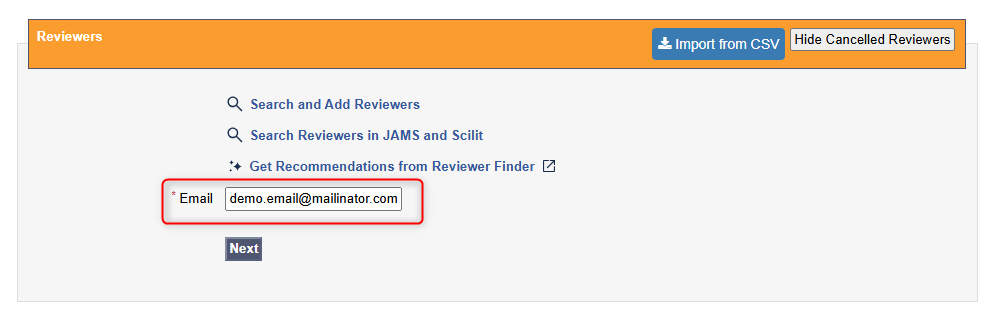
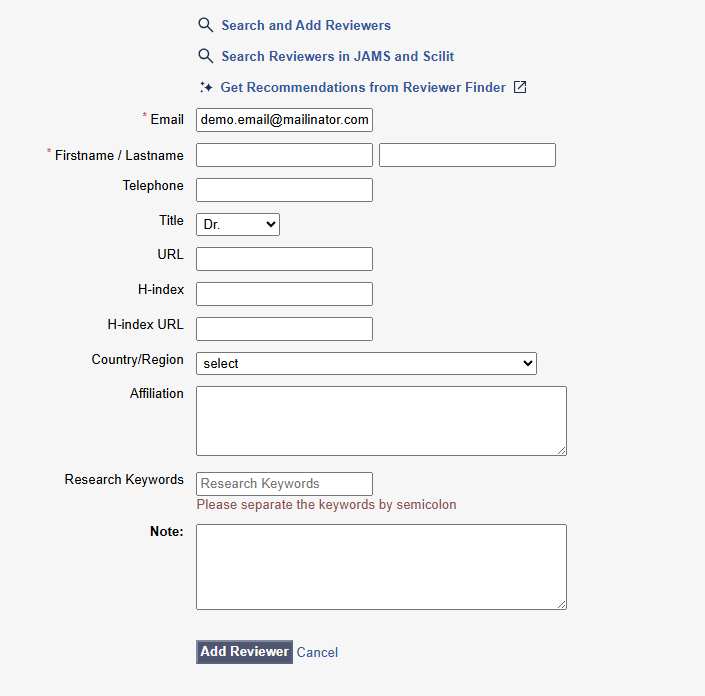
By typing an email address into the email box and clicking next, you can manually input details of a reviewer you want to invite. This will also add them to the JAMS reviewer database for future easy use.
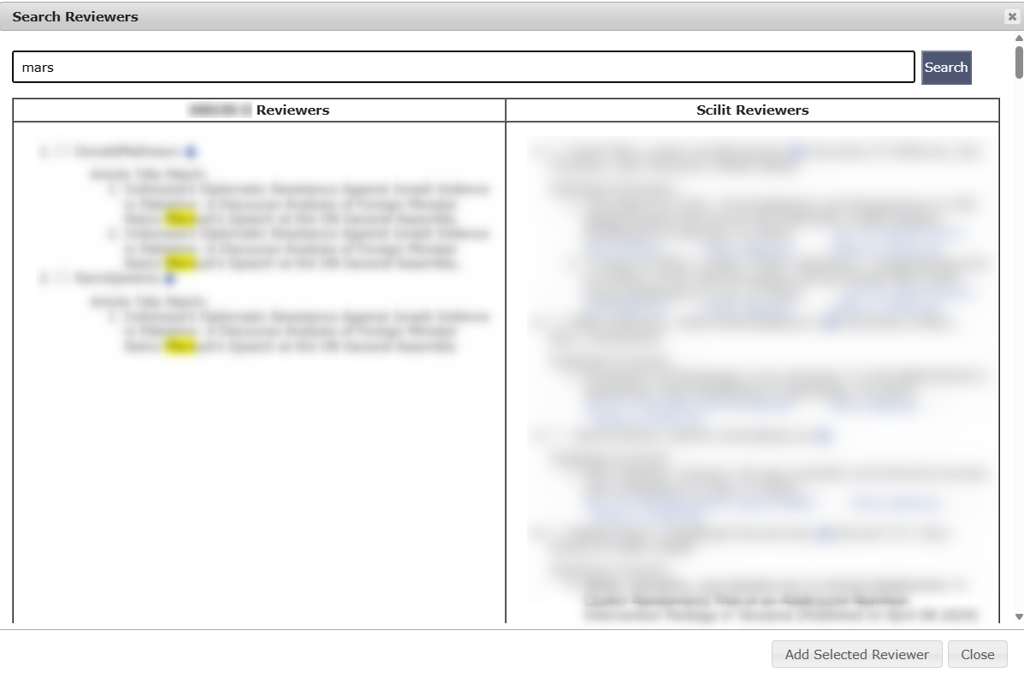
- Search by the titles or keywords of articles the reviewer has previously published via JAMS.
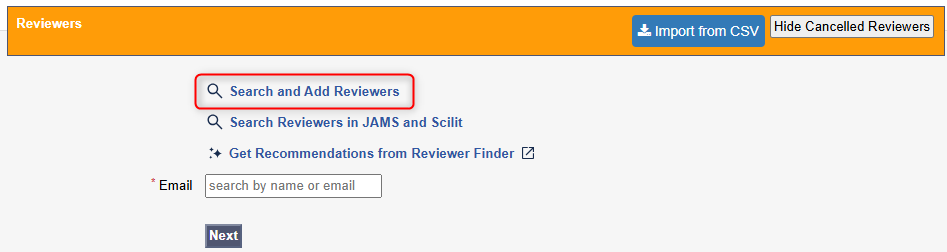

- First row allows editors to search reviewers by the titles or keywords of their articles previously published via JAMS.
- Second row browses reviewers through the keywords they have entered in the database.
- Last row allows a reviewer search via their name or email address.
- Search via Scilit, alongside the reviewers pulled from your database.
Scilit is integrated into the JAMS platform to work in parallel with the journal’s own reviewer database. Put in a few keywords and the Scilit search engine will retrieve a list of potential reviewers, along with their contact details and titles of papers they have published.

- Use the AI-powered Reviewer Finder (available with Premium features).
The Reviewer Finder semantically analyses the Title and Abstract of the Manuscript you are working on and matches suitable scholars based on their previous work for the peer review.

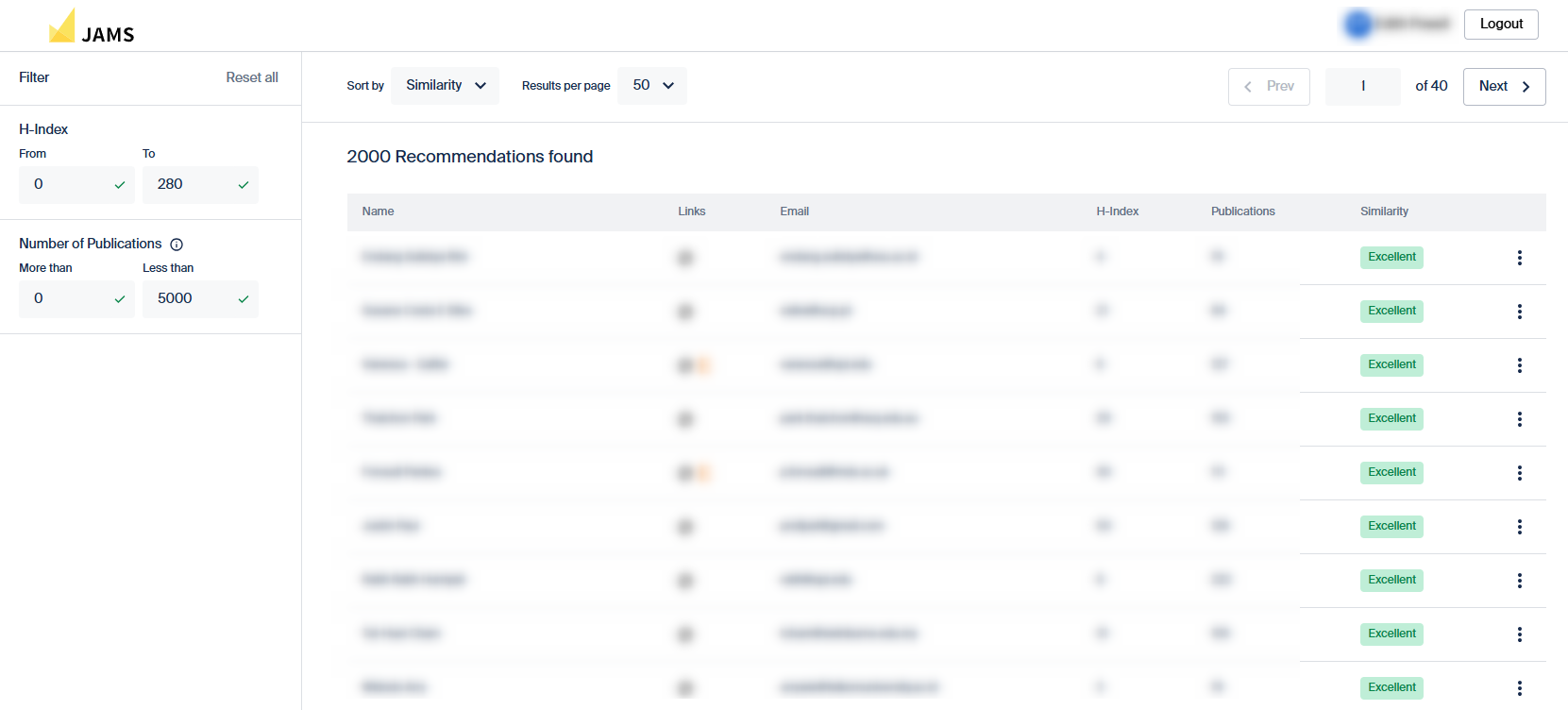
To add a scholar from this page, click the three dots on the right side of the reviewer's name.

Then, click ‘Add to Reviewer List’. This function will add the Reviewer to the list of reviewers on your JAMS manuscript page for you to use in now or in the future.

You will then be able to see the reviewer on your JAMS manuscript page and invite them to review the manuscript.

Sending the Invitation
Once you have found the right person, select the option to invite them. You will see a preview of the invitation email before it is sent.
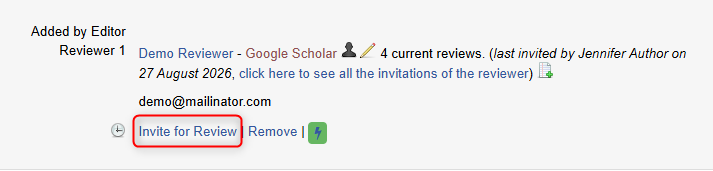
Check the email in the preview window, then press ‘Send’. The reviewer will receive an email with a link to accept or decline the invitation.
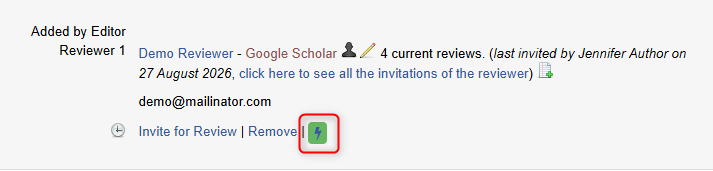
To invite reviewers quickly, you can click the green lightning bolt to send a quick invite without previewing the email every time.
Tracking Responses
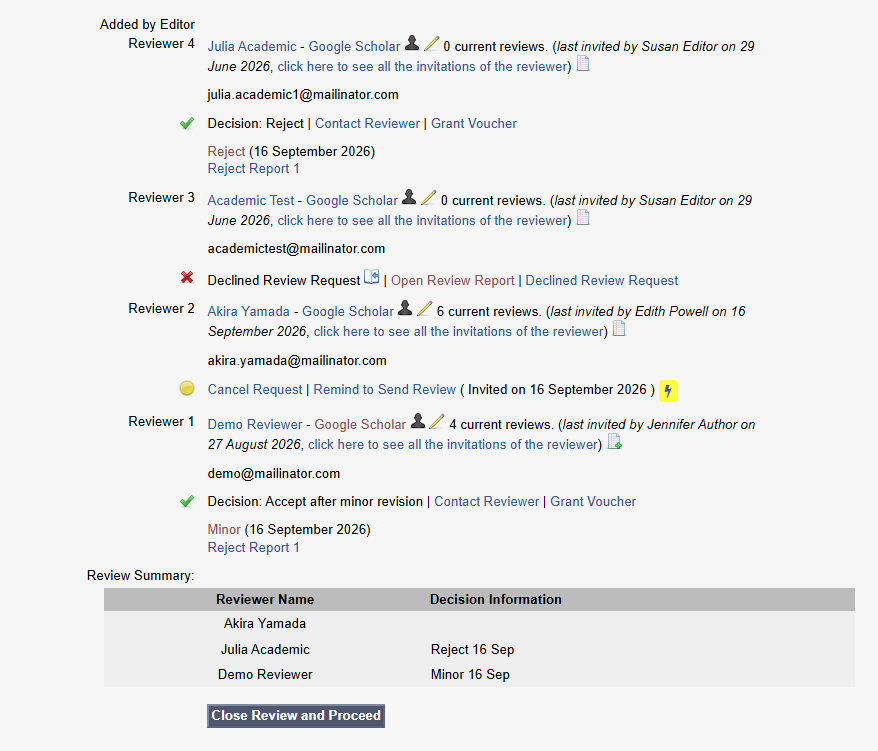
You can see each reviewer’s status (for example Invited, Accepted, or Declined) against their name in the ‘Peer Review’ section. This lets you see at a glance how many reviewers have agreed to review the manuscript.
The system will either show you they have accepted and completed the review, declined to review, or have not responded. You can send a 'Quick Remind' with the yellow lightning bolt to the reviewers who have not responded.
🗒️ Note: If a reviewer has not responded, JAMS can chase them for you. See the Automatic Reminders page to set this up.
When you have enough reviewers in place, you can click Close Review and Proceed.