Online Proofreading
Online Proofreading is an application integrated into the JAMS workflow. It provides authors with an easy way to proofread their work online, while also giving editors the ability to review updates in a seamless, collaborative manner. As a result, both authors and editors can stay aligned throughout the proofreading stage, making it simpler to manage revisions and respond to feedback.
⚠️ Important: Online Proofreading can only be used by customers who have signed up to use JAMS Production Services.
After the manuscript has gone through the copy-editing stage, authors are required to proofread their work. The user must head to the 'Proofreading' page found here:
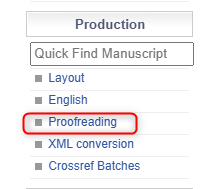
If you have Online Proofreading turned on in the Application Features, the next stage of manuscript processing will be XML Preparation. This will be done by JAMS Production Staff.
Once the XML file is uploaded by the JAMS Production Staff, the Handling Editor will receive an email, reassigning them the manuscript. They must head to the 'Finalize Manuscript Tab'.
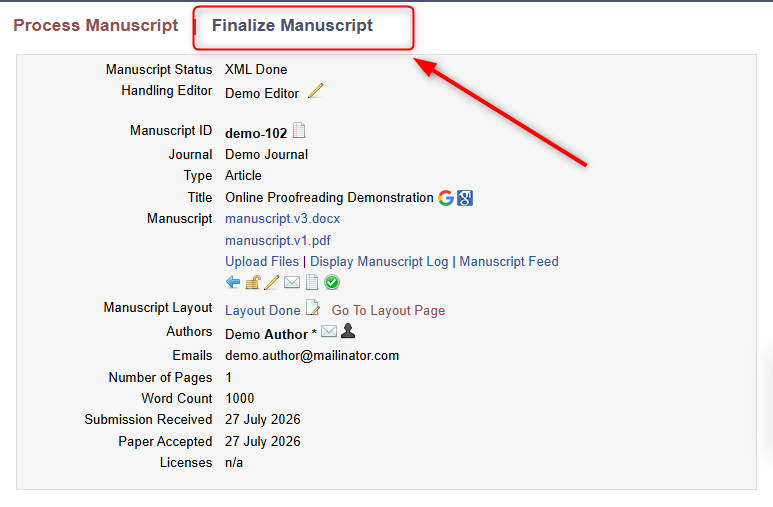
Then scroll down and select 'Go to Online Proofreading'.
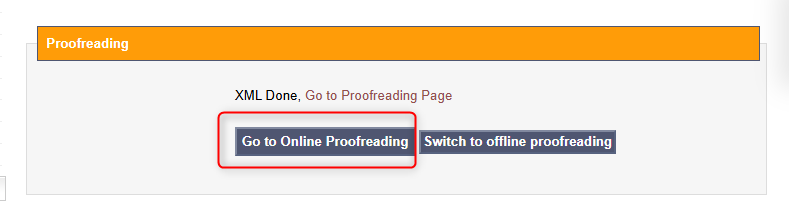
The editor will be taken to the Online Proofreading platform with the manuscript uploaded.
Online Proofreading Platform
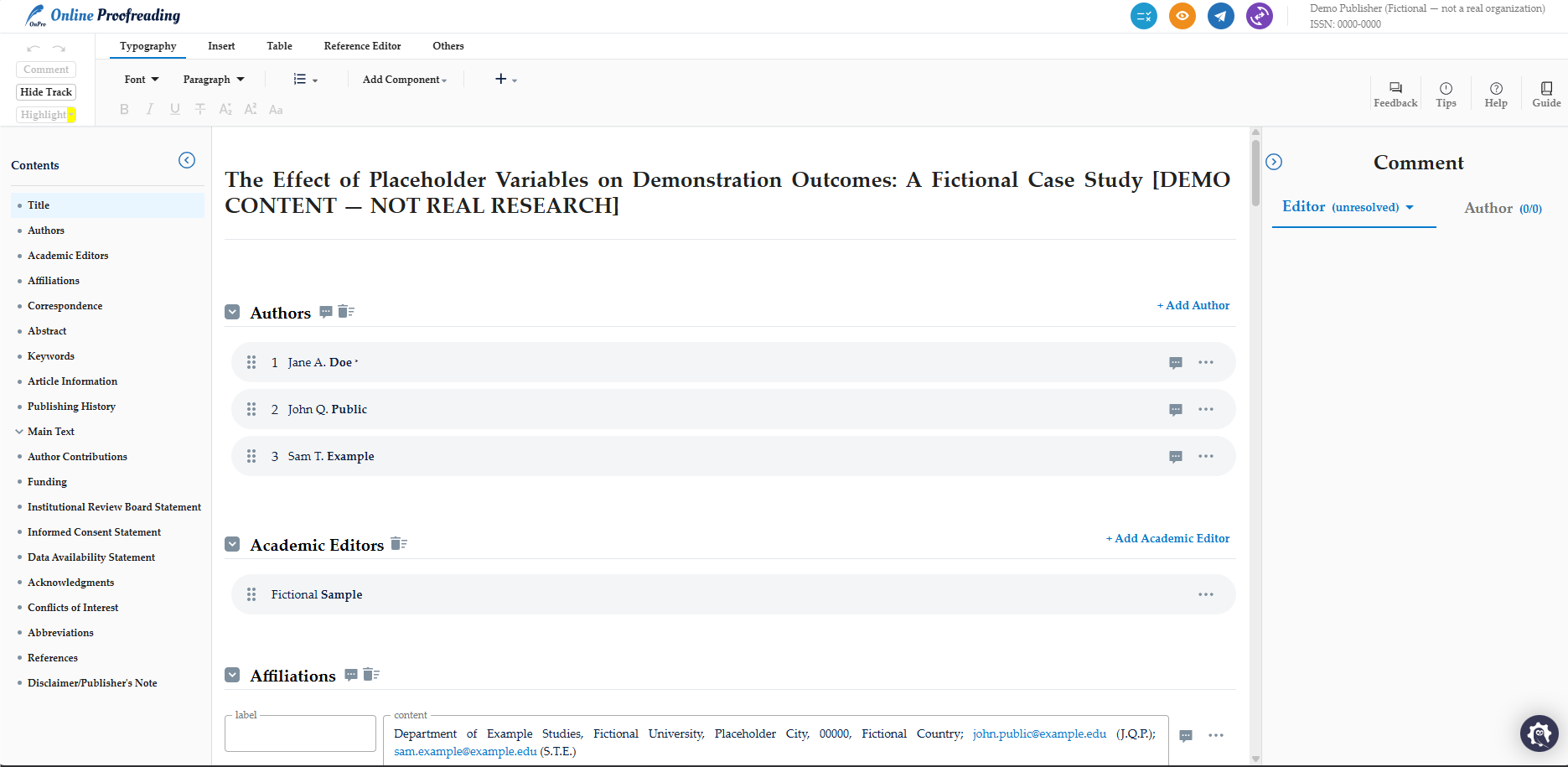
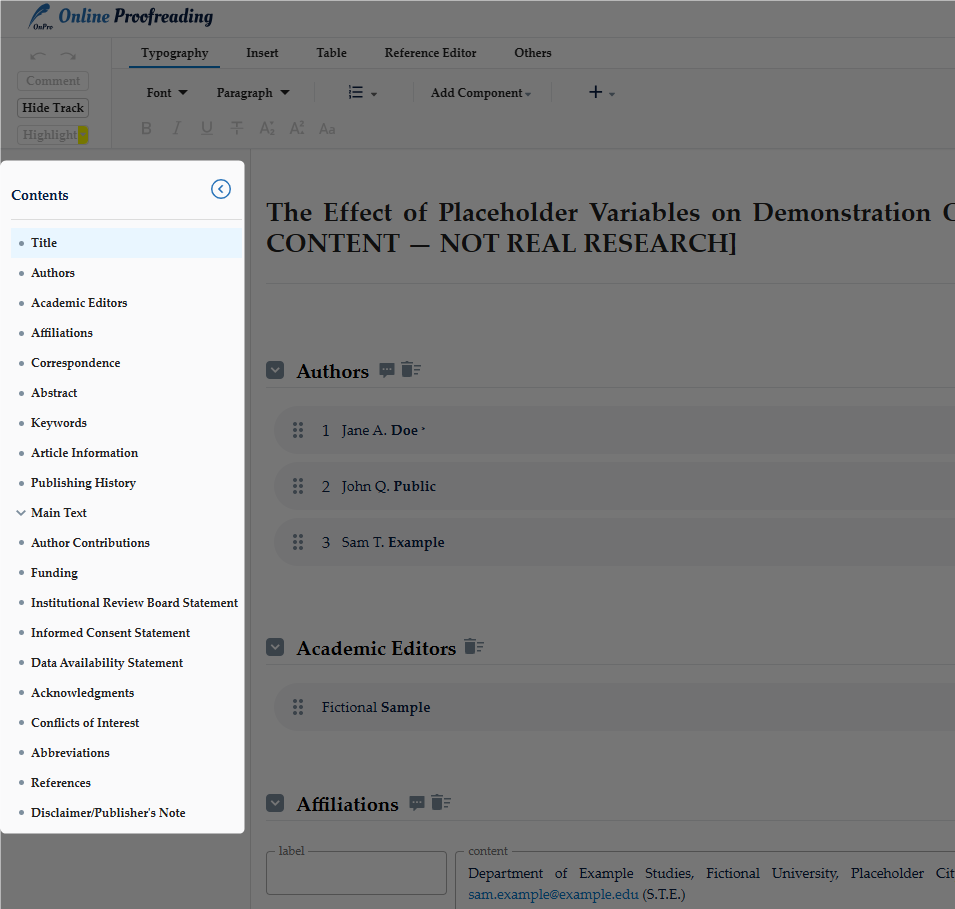
The manuscript can be navigated on the contents side bar.
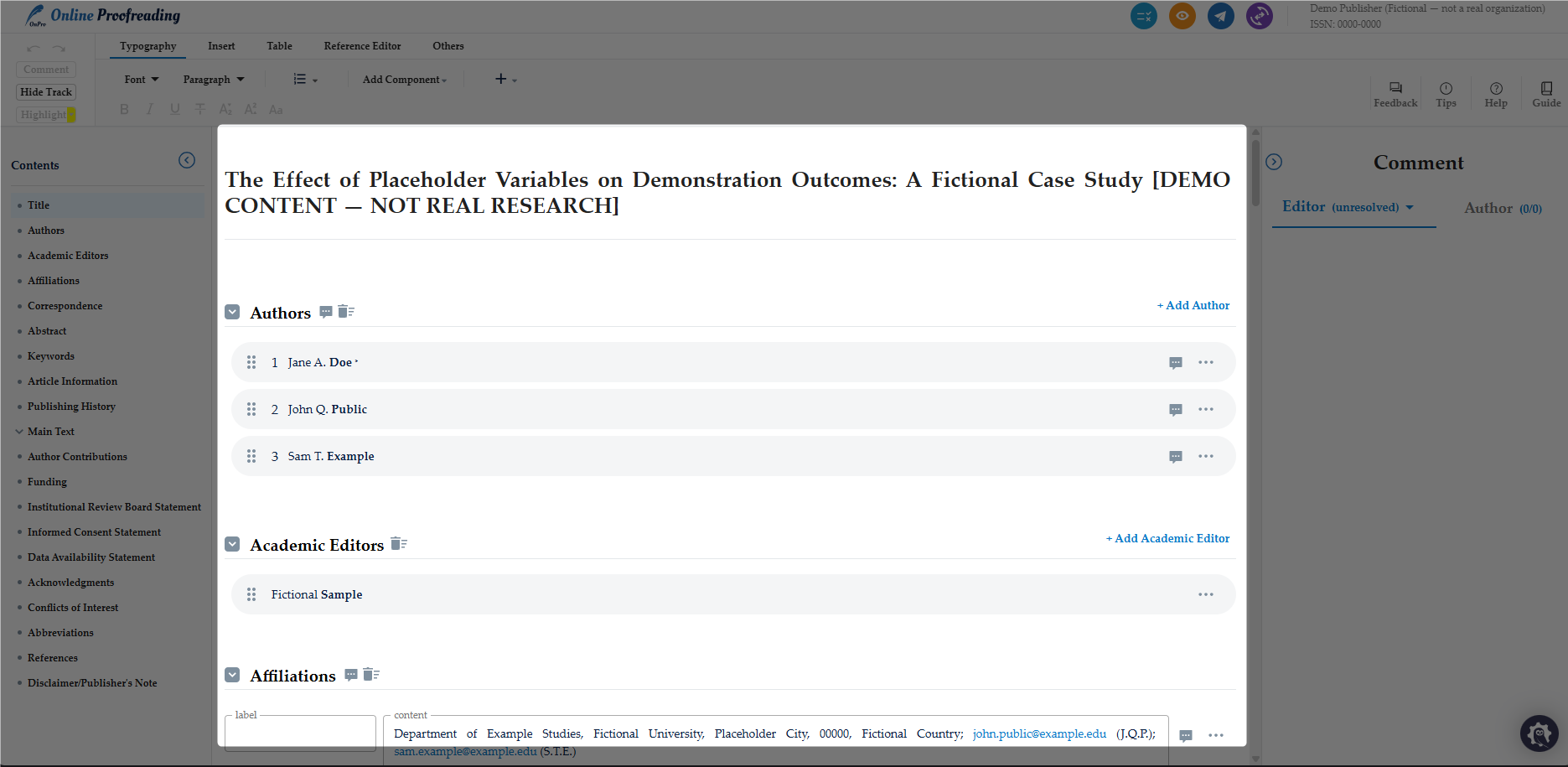
The main section of the paper can be read and edited here:
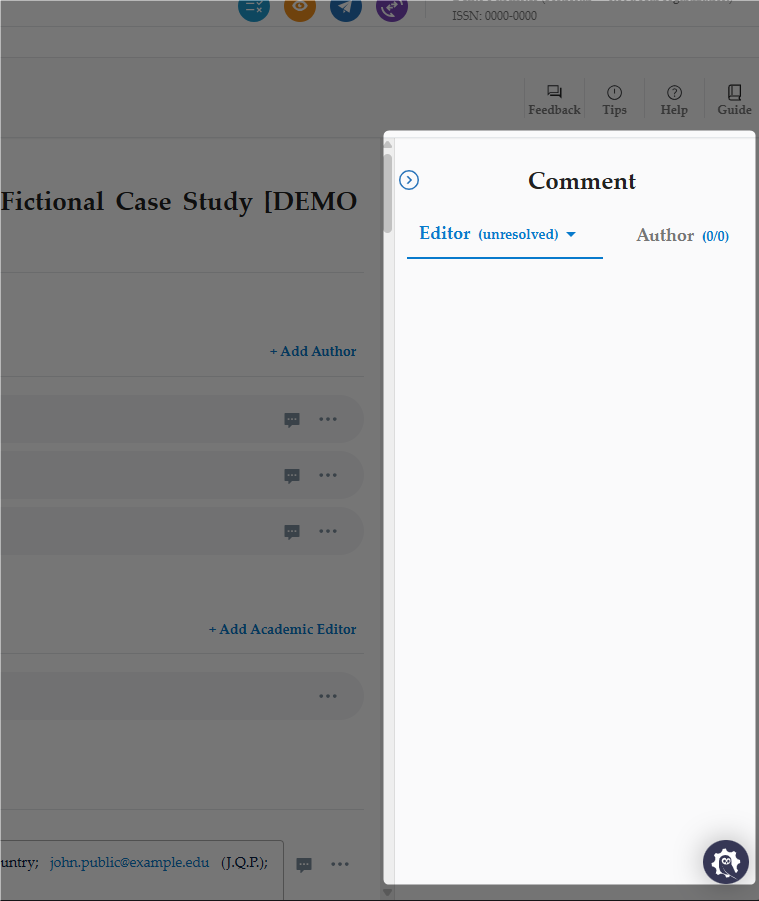
Comments can be read and responded to between the Editor and the Author here:
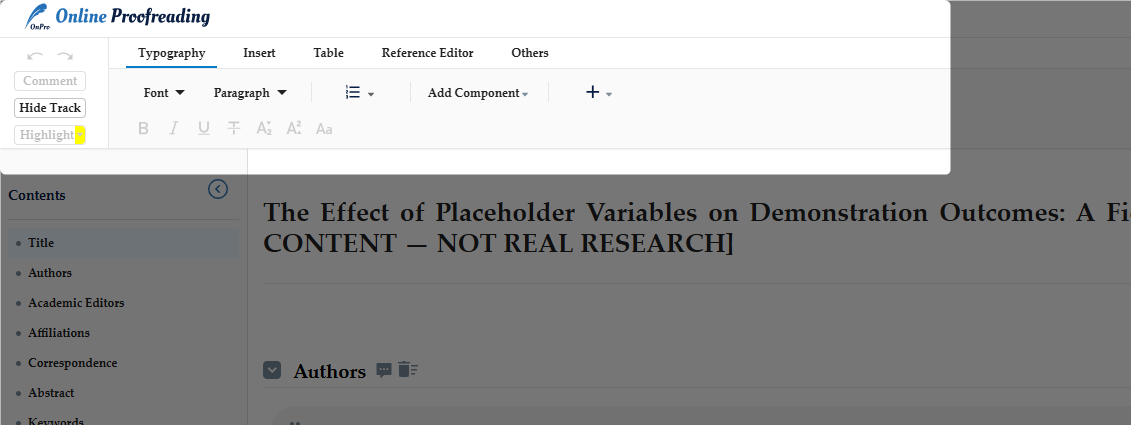
The tool bar above includes tools to edit the text, images, tables, references and more:
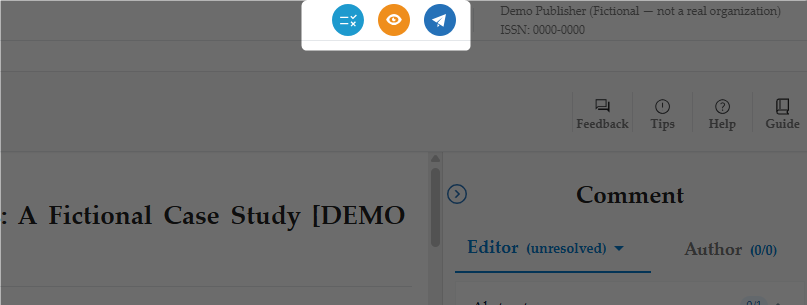
Finally, the paper can be checked by the system for errors, previewed, or sent to the author with buttons in the top right corner.
Editing the Manuscript
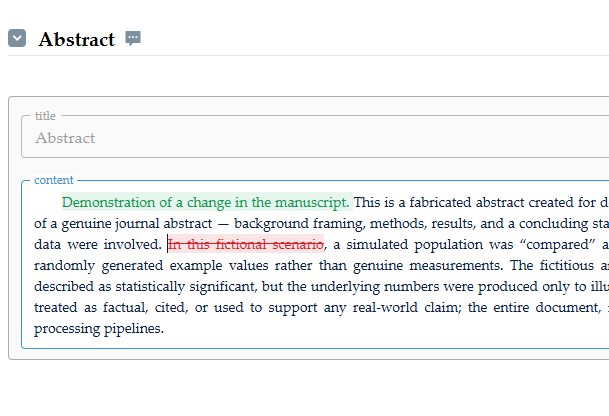
Both Editors and Authors can change the contents of the manuscript directly on Online Proofreading. When text is added, it appears for both editors and authors to review in green. When text is deleted it appears for both parties to review in red.
Leaving and Replying to Comments
Editors can leave comments next to any part of the manuscript they would like the author to address.
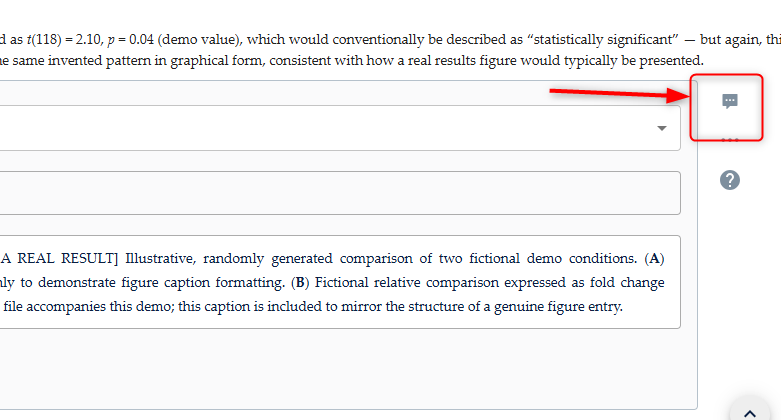
They can leave comments on an entire section by clicking the comment icon next to the section they'd like to highlight.
Alternatively, comments can be left on specific parts of the text by highlighting the text and clicking 'Comment' in the top left corner.
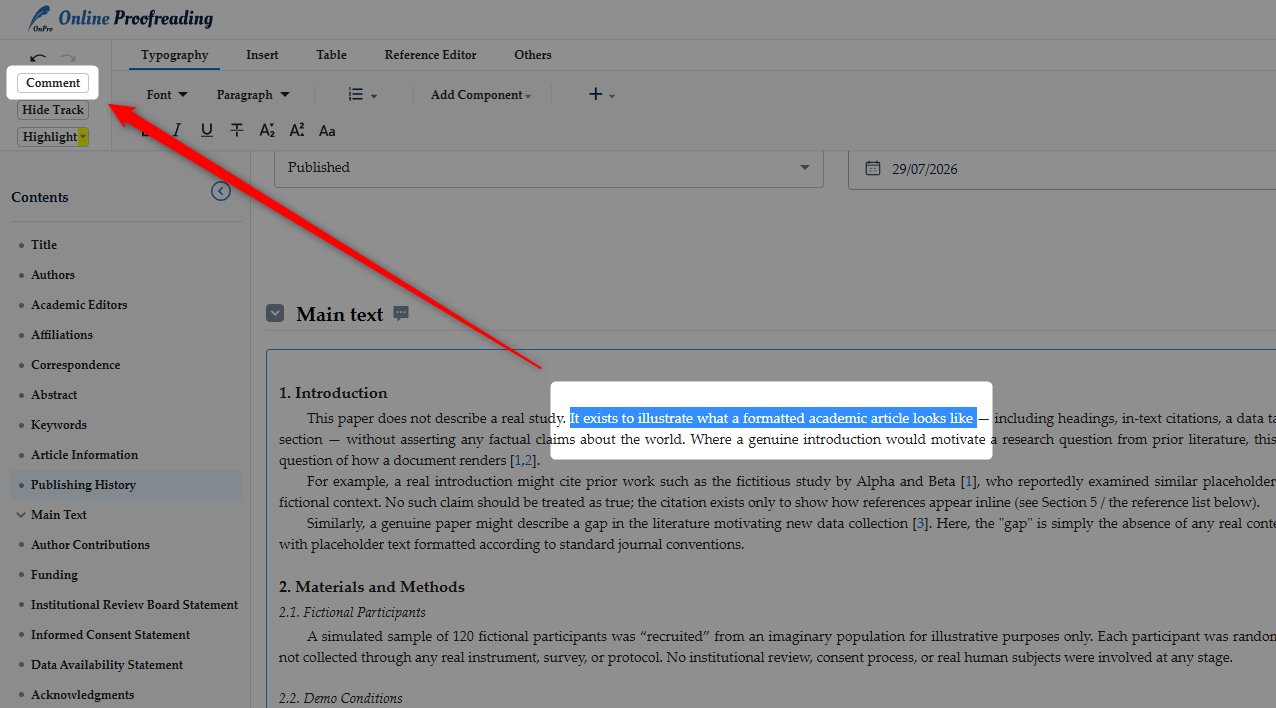
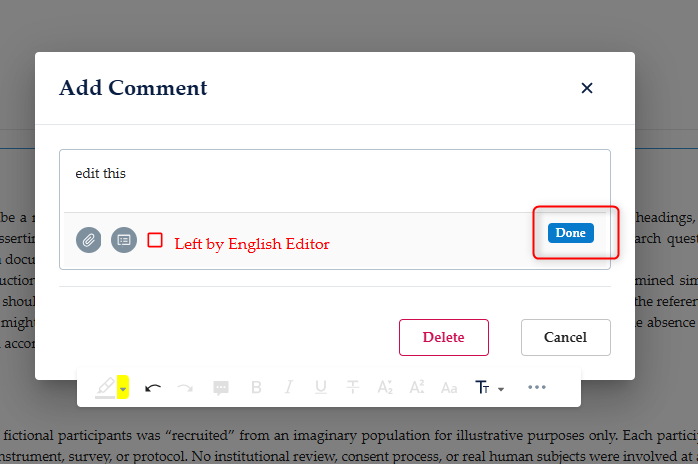
They can then leave a comment in the comment box that appears and click 'Done'.
When an editor leaves a comment, they appear in the comment box on the right side for a checklist for authors to work through.
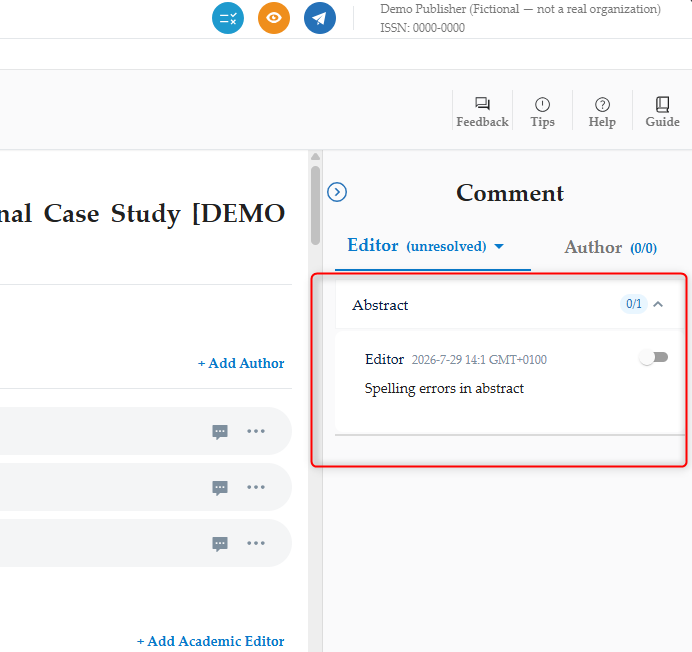
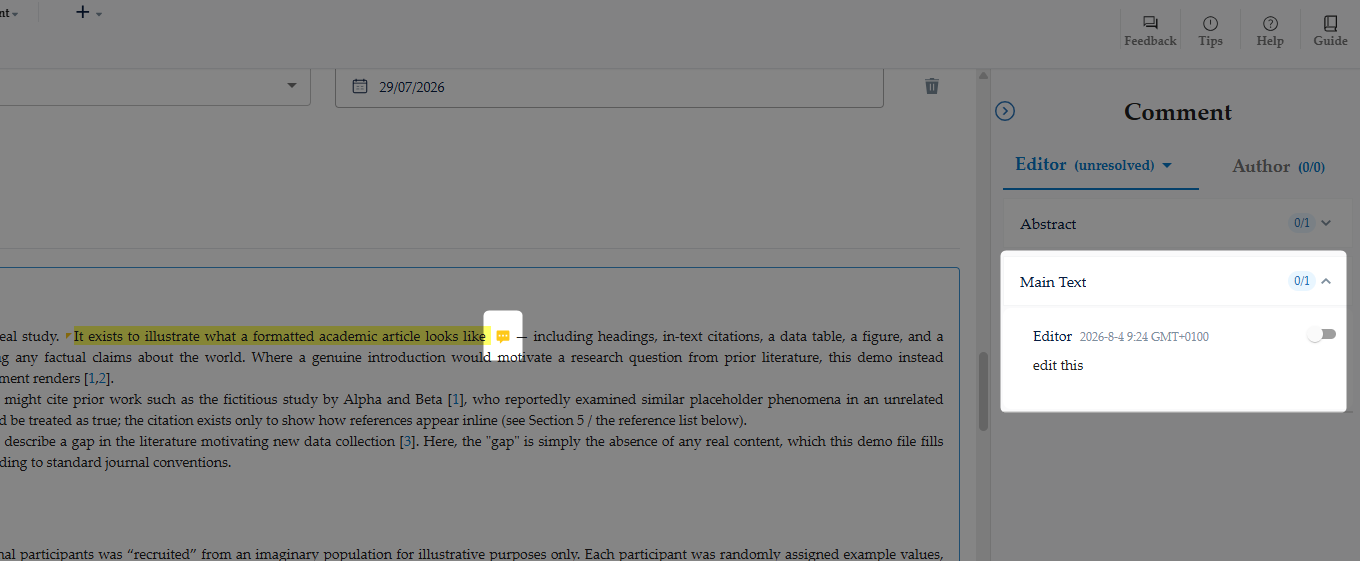
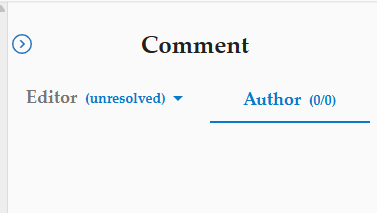
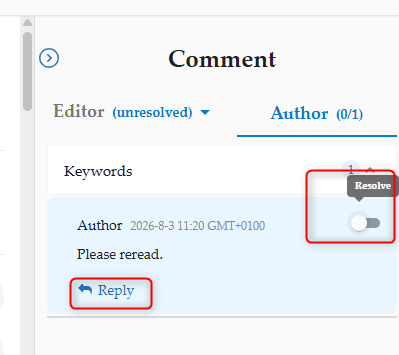
The editor can also see comments and responses from the author by clicking 'Author' in the Comments box. Author comments are only left in response after the Proofreading has been complete.
Author Response
Authors can access online proofreading to respond to editors through either the link emailed to them or through the JAMS platform.
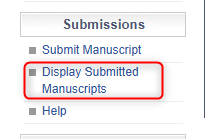
If authors log in and head to 'Display Submitted Manuscripts' they can see their manuscripts.
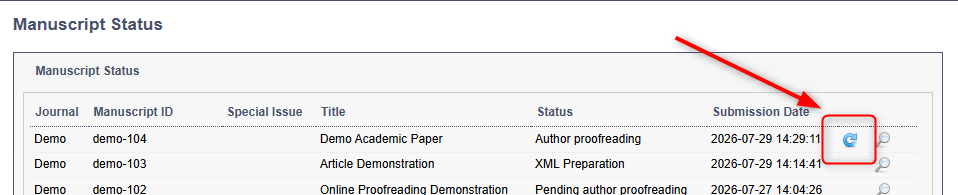
They can then click the blue arrow next to the manuscript to take them to the Online Proofreading Platform.
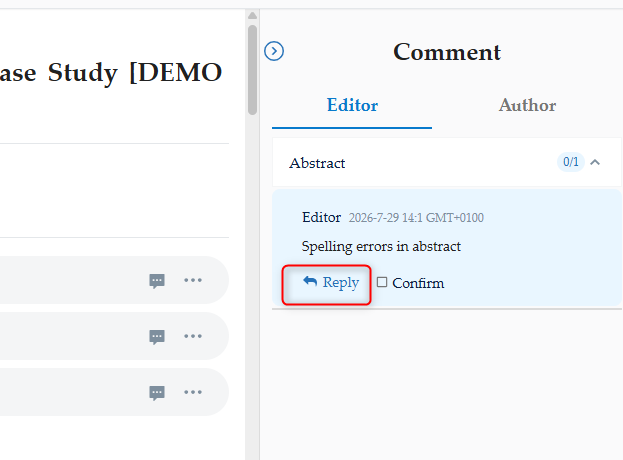
Authors can then read through their manuscript and work through editor comments. They can also reply.
Comments can be written and attachments added.
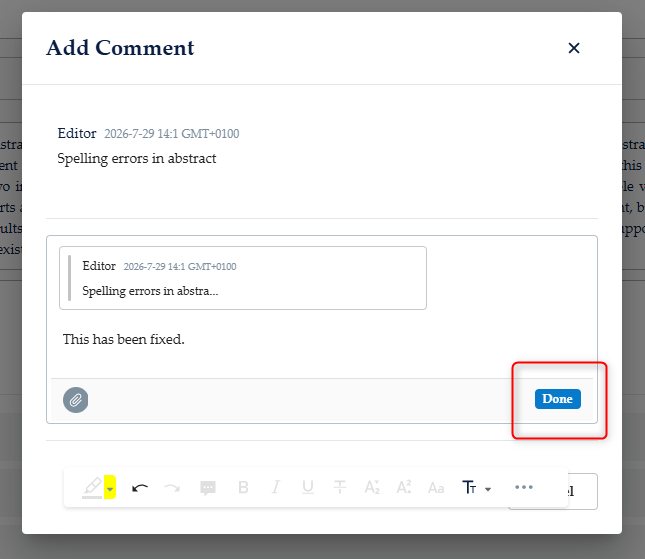
When the author has edited and proofread the document, they can submit it to the editors here:
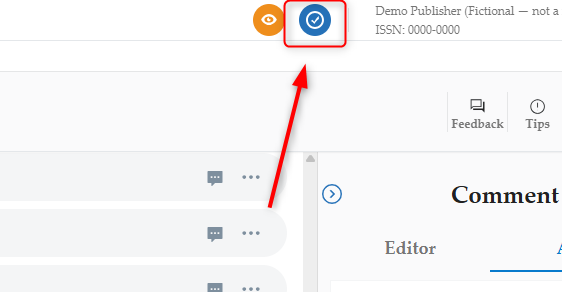
Editor Response and Sending to Publication
The Handling Editor will be able to see any changes and comments the author has made and respond to resolve them.
When the manuscript has been through at least one round of proofreading, the editor then has the option to send it to publication with this button:
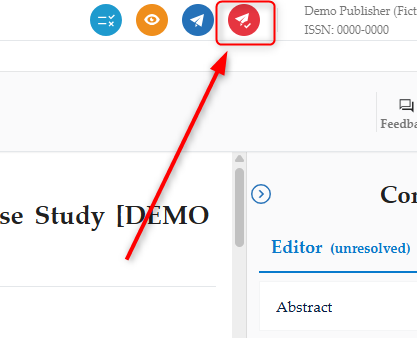
The system will scan for possible errors that both parties have missed. The editor can go through and check the suggestions or can click confirm to bypass them.
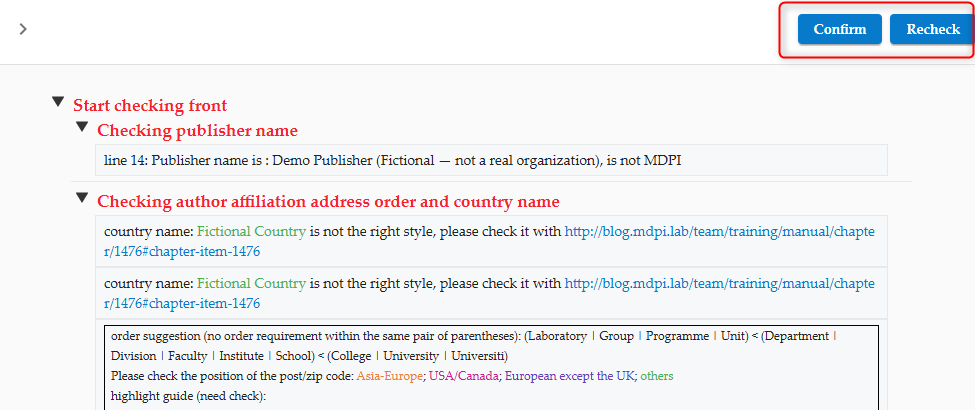
Once the manuscript changes are confirmed, the article will go back to XML conversion to be finalised for publication.