User Registration and Roles Assignment
User Registration
In order to use the JAMS platform, both journal editorial staff and authors need to register an account. This can be done by following the steps shown in the two screenshots below.
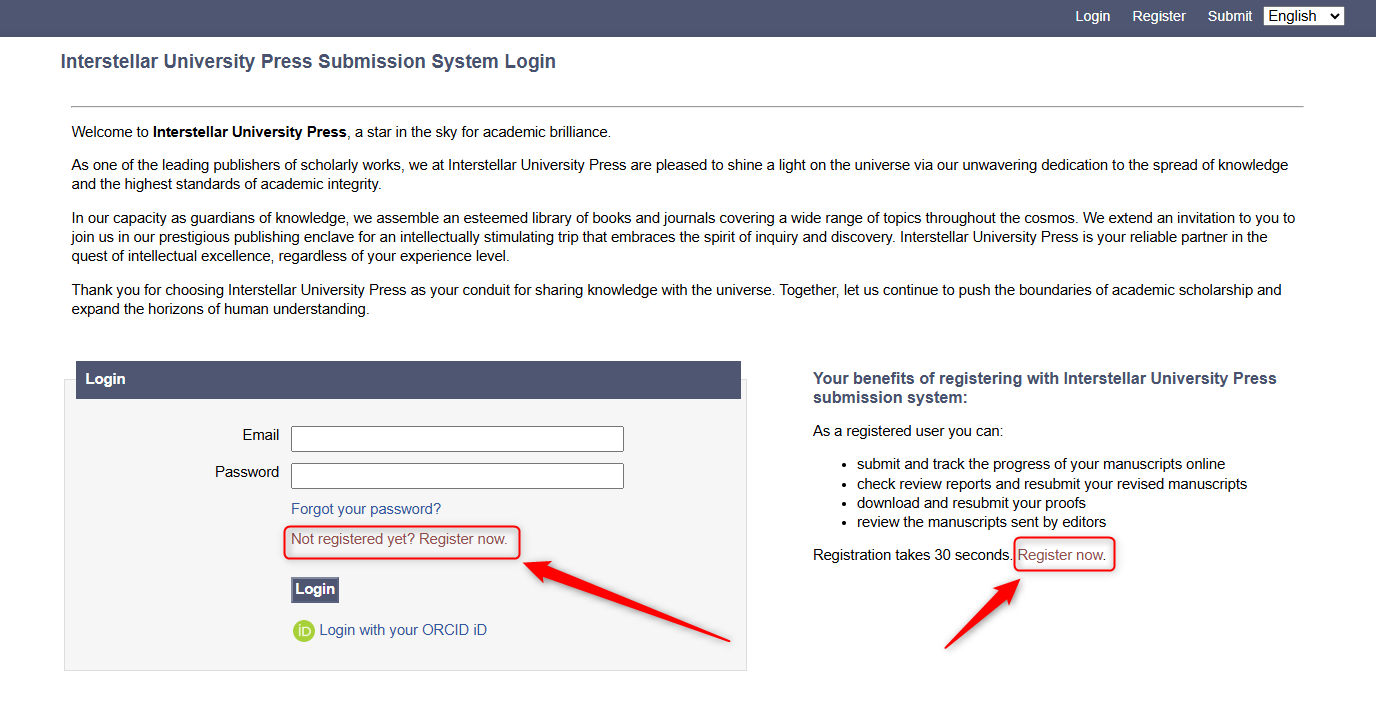
Login Page
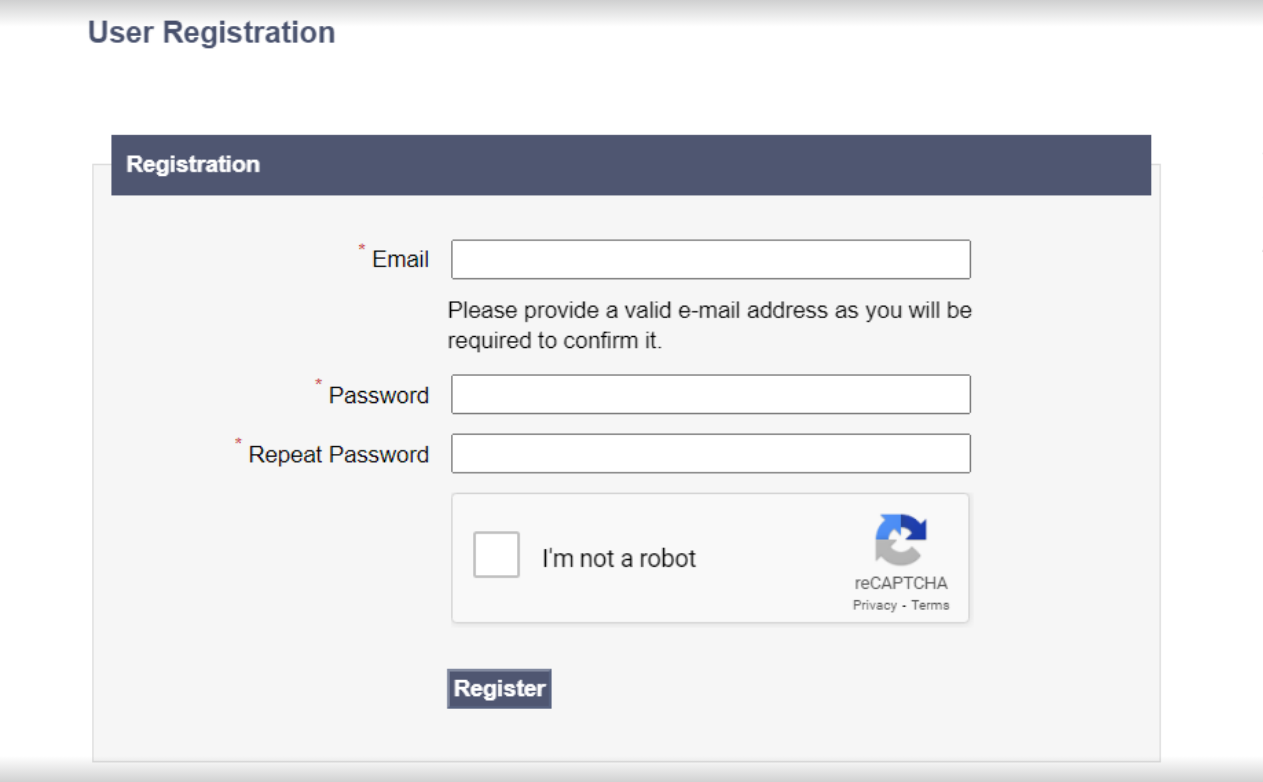
Registration Page
Upon filling out their email and password and hitting the Register button, the user will receive an email with a verification link in order to complete their registration.

Tip: When inviting your editorial team, send them the URL at the top of the Login Page so they can get started! You can find this by clicking ‘Logout’ at the top right of the website which will take you to the Login Page.
Roles Assignment
Assigning roles is very important because each new user is registered as an author by default (meaning that the user can only submit manuscripts and see submitted manuscripts).
A Super User can promote an author account to be an editor by following these two options from the menu.
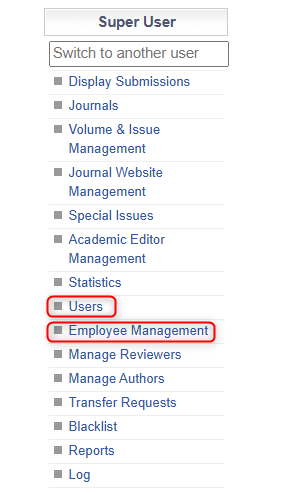
Super User Menu
Users
In the User Management menu, you should flag a registered user as a member of the editorial office. By clicking the ❌ icon next to their name, the icon will be changed to a green checkmark and the user will be marked as an editor. Regarding authors and reviewers, this option should remain negative (❌ icon). This view also allows a Super User to see whether there are unverified user accounts and override the need for email verification if this is required.
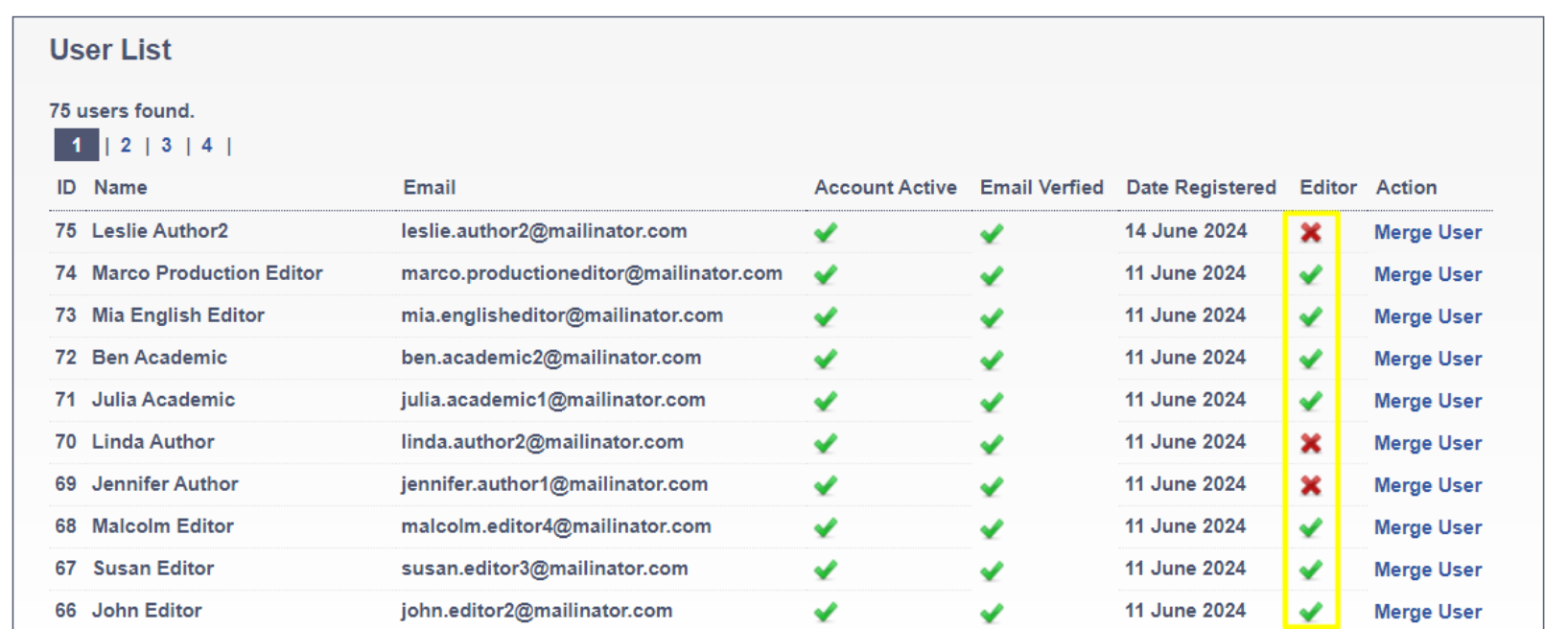
User Management View
Employee Management
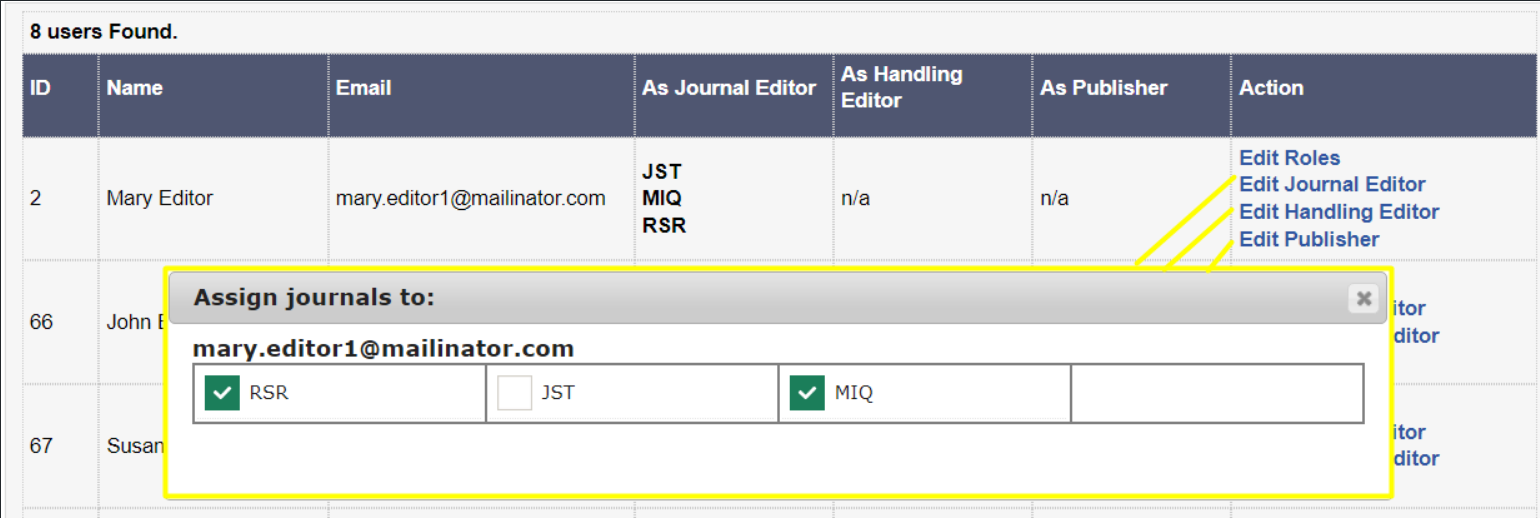
The Employee Management screen displays a view of all registered users who are marked as editors, with the ability to view and update their roles.
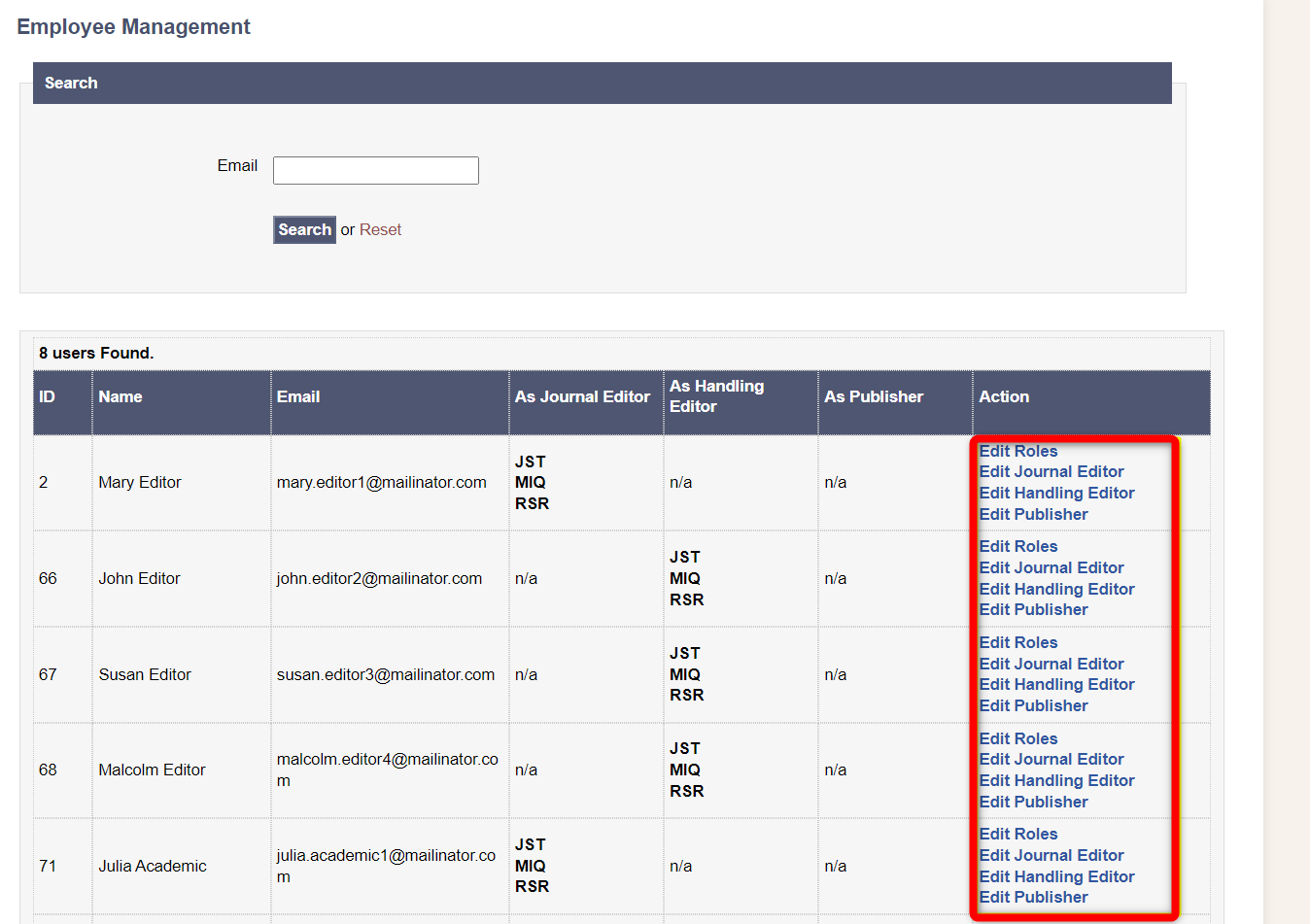
The option Edit Roles allows the assignment of roles such as Handling Editor, Journal Editor, Publisher etc. See here for in-depth information about the different roles.
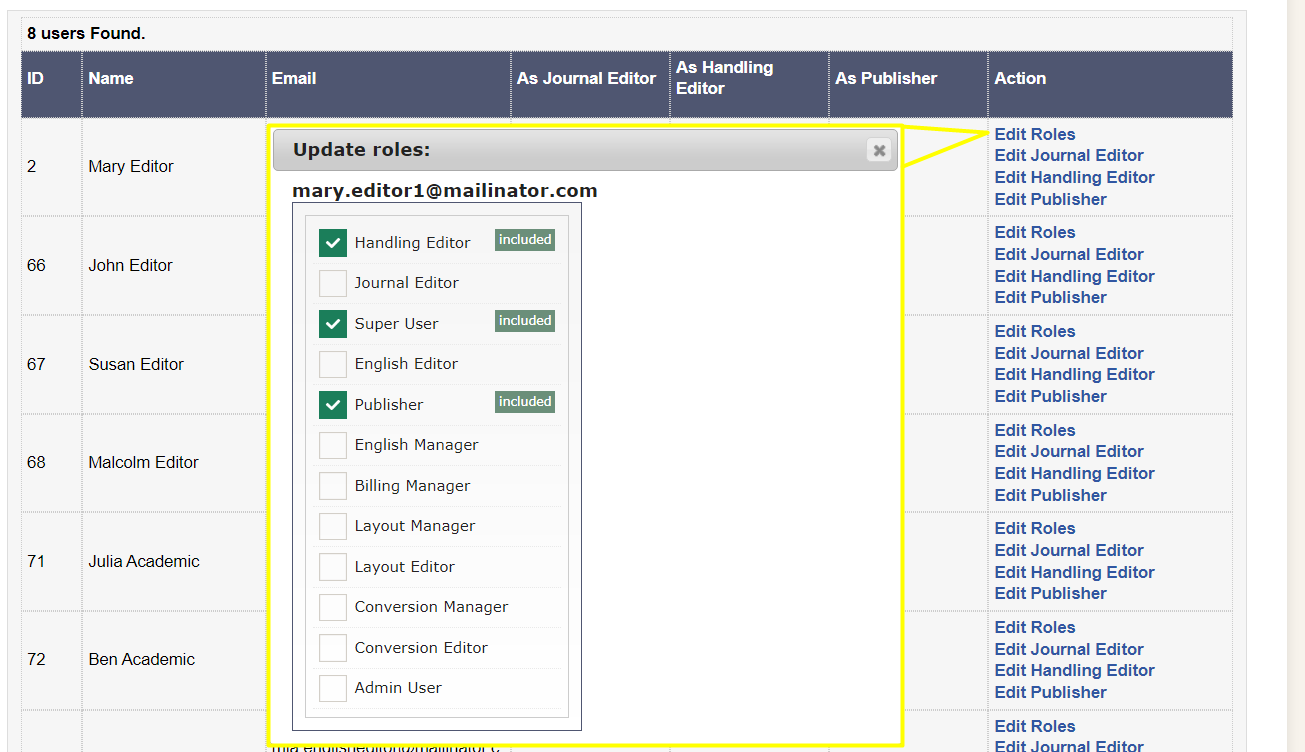
The options Edit Journal Editor, Edit Handling Editor and Edit Publisher allows you to select the journal(s) for which the role will be applied.