
Manuscript Page
PUBLISHER JOURNAL EDITOR HANDLING EDITOR
Once the author has submitted their manuscript, the submission will be assigned a manuscript ID and will have its own manuscript page. All of the relevant metadata is stored here and it is the location of all of the editorial processing steps. You will be able to see where exactly in the process the manuscript has reached.
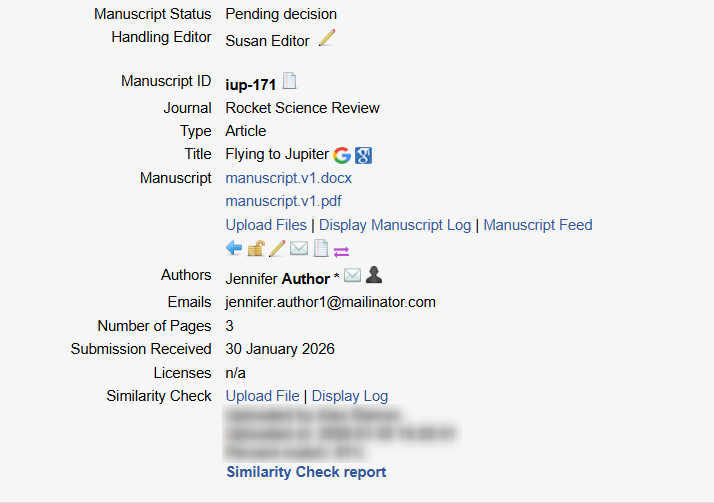
Manuscript Details
Manuscript Page Walkthrough
Manuscript Status
This shows what stage of the editorial process the manuscript is at e.g. ‘Submitted', ‘Under Review’, ‘Pending Author Revision’, etc).
Handling Editor
This shows who the assigned Handling Editor of the manuscript is. The Journal Editor can do this or they can assign themselves. See Editorial Team: User Roles for more details.
Manuscript ID
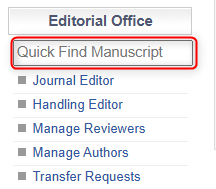
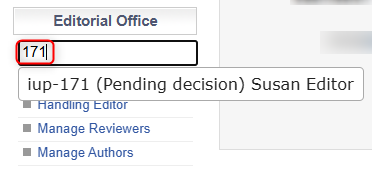
This is the unique identifier of the submission on JAMS and it will be included in all communications to the author. You can use the manuscript quick-find search bar by typing in the Manuscript ID number. If you have multiple journals, you can identify the correct manuscript by the short-hand journal name (see below iup-171).
Manuscript
This is where the latest version of the manuscript can be accessed (in both the Word file and PDF). A new version can be uploaded to the system using the ‘Upload Manuscript’ button. Previous file versions can be accessed through the ‘Display Manuscript Log’ button. You can also see all previous interactions with the manuscript by clicking ‘Manuscript Feed’.
Icons
These icons appear below. They allow for quick actions
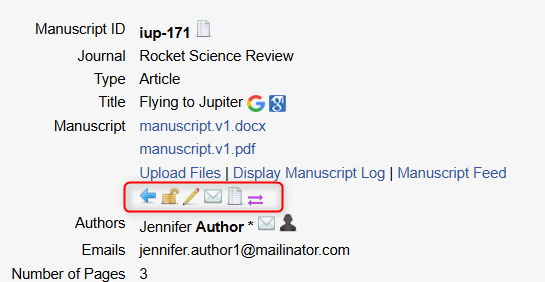
 | Rejects Paper. This icon gives you the option to reject a paper at any point of the editorial process e.g. similarity report is too high. |
 | Grants Editor In Chief Viewing Permission. The EiC is the only member of the Editorial Board who is able to see manuscripts in between the Pre-Check and Final Check stages. |
 | Edit Manuscript. In JAMS, pencil icons allow you to edit the component they are attached to. In this case, you can edit the Manuscript details, reupload the file etc. |
 | Send Email to Assigned Editor. This allows you to compose an email to the Handling Editor that is assigned to the paper through JAMS. |
 | Displays Mail Log. You are able to see all email communications completed in JAMS including automated emails (see here to set these up). |
 | Transfer Manuscript to Different Journal. If you have multiple journals, this icon allows you to transfer manuscripts. When you transfer, the manuscript will have a different manuscript ID. |
Manuscript Progress Steps
Below the Manuscript details, you will see the stages of the editorial process. The step that currently requires action has an orange title bar (see image below).
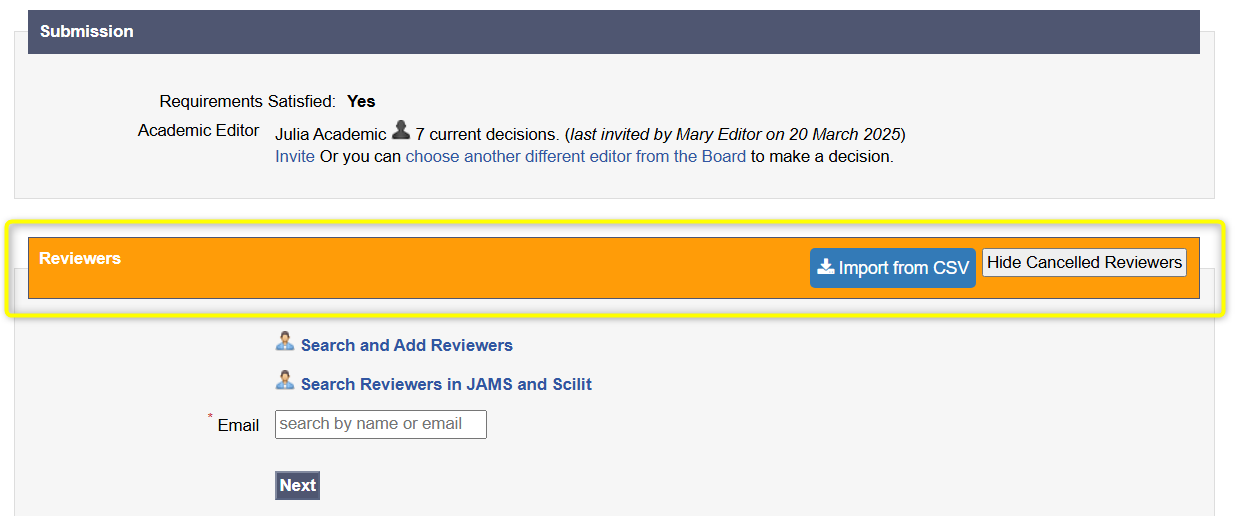
Current process in the above case is peer-review