Duration Alerts
The Automatic Duration Alerts can be created to send out system-wide notifications to users whenever manuscripts stay in a workflow step longer than expected. For example, if a manuscript has been in the Peer Review step for longer than expected, the editorial team will be notified. This helps to highlight any manuscripts that may have been delayed and allows the team to investigate any steps that can be taken to resolve the delay.
How to Use
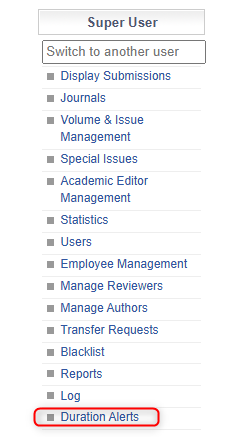
Locate the ‘Duration Alerts’ page under the Super User menu in the left hand column.
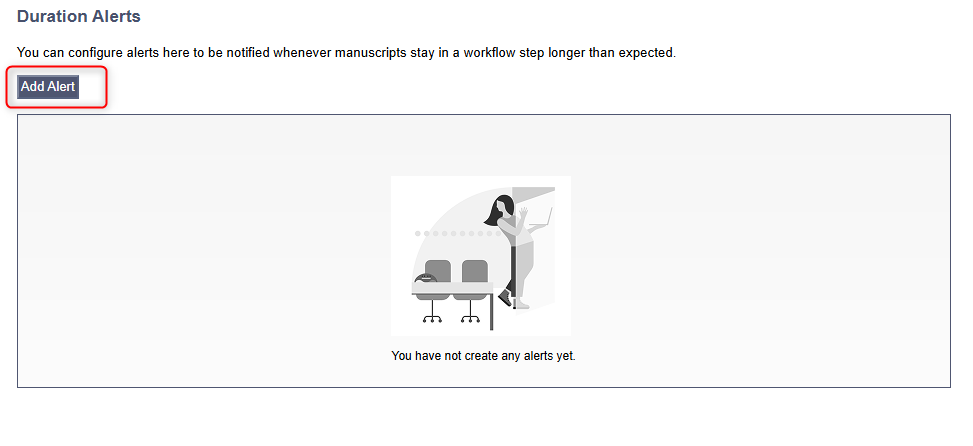
Click ‘Add Alert’ to create a system-wide alert.
Duration Alerts Page
Adding an Alert
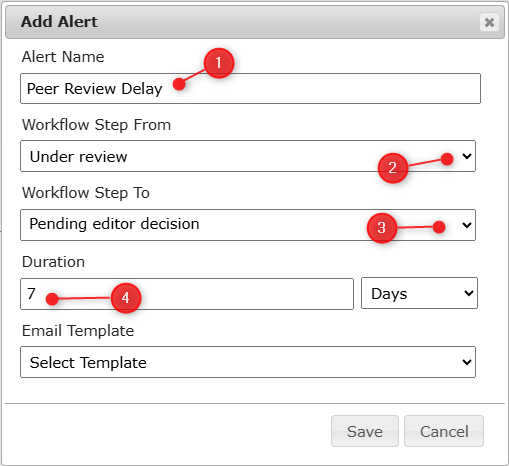
Name your Alert to differentiate them from other custom Alerts
Select from the list of Steps where you want the start of the system tracking to be e.g. you want the alert to track when the manuscript goes Under Review
Select where you would like the Alert to finish.

Note: The manuscript does not have to go through every Workflow step to complete the Workflow that is being tracked.
Add the duration you would like to pass before the Alert is triggered
Choosing a Template
The Alert must be linked with the email template you wish to be sent out. You can customise and add email templates by following the instructions in this article: Email Templates Management.
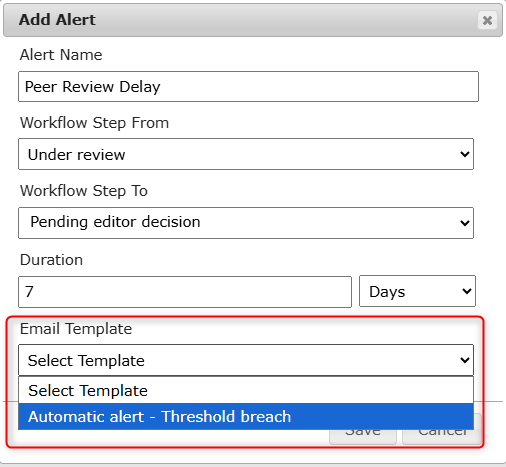
Select the correct Template in the dropdown menu.
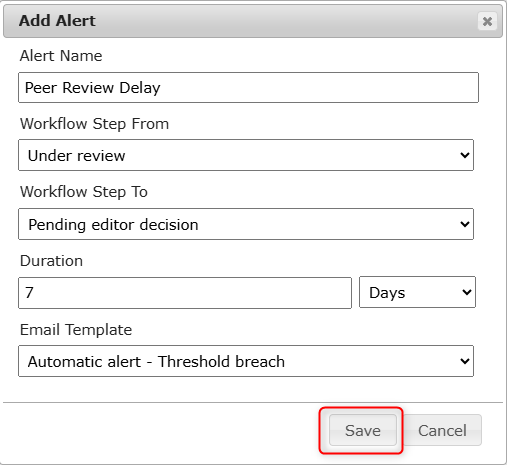
Save your Alert
Once your Alert is configured, remember to press Save.
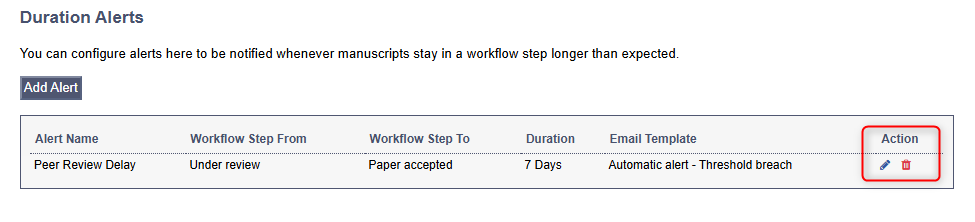
You will be able to see your saved Alerts in the menu. You can edit them by clicking the Pen icon under Actions and delete them by clicking the Trash icon.